In shortTo edit a YouTube video faster, first find where your time actually goes, then split the edit into separate passes (select, story, pacing, polish), start every project from a saved template with presets, and let transcript-based tools do the first rough cut. If the edit is still the thing stopping you from posting, hand the repetitive parts to a freelancer, an AI tool or a done-for-you service.
- Time a few edits first: the slow part is often cleanup of messy takes, not the software.
- Edit in four separate passes instead of polishing as you cut.
- A saved project template, preset stack and custom shortcuts remove the same setup work every week.
- Transcript tools can delete filler words and pauses in bulk, but always check the joins.
- Outsource the repeatable parts when editing is what stops you posting; keep the creative calls.
Why editing takes so long (it is often not the editor)
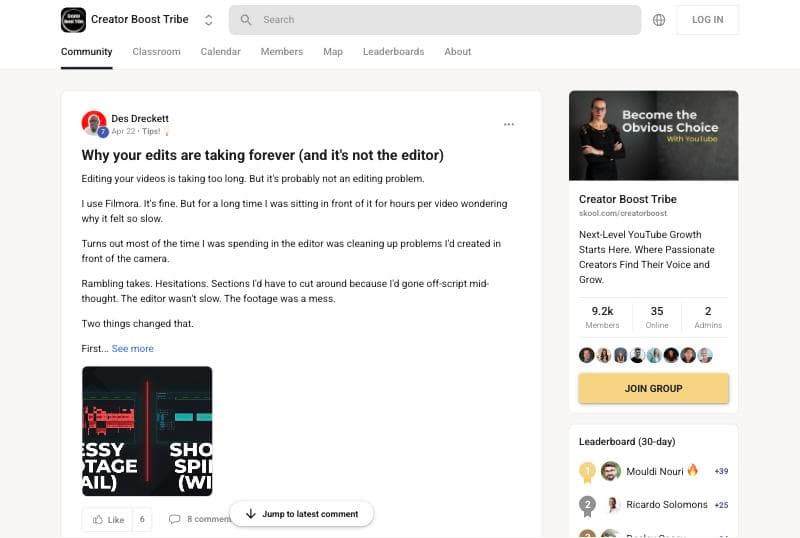
If you want to know how to edit a YouTube video faster, start with an honest look at why it is slow today. In creator communities the same story comes up again and again: someone sits in Filmora or Premiere for hours, assumes the software is the problem, and then realises most of that time went into cutting around rambling takes, hesitations and sections that went off-script.
A thread in the Creator Boost community on Skool makes exactly this point, and the replies add other real causes: hunting for copyright-safe b-roll, moving visuals between three apps (an AI image tool, Canva and CapCut) for every video, and redoing an edit after audio and b-roll drifted out of sync. One commenter said a 6-7 minute video still takes them 3-4 hours, and another had tried a professional editor but found the results risky for a sensitive medical topic.
So the causes are rarely one thing. They usually fall into five groups:
| Cause | What it feels like | Quick check |
|---|---|---|
| Messy footage | Endless small cuts around ums, restarts and tangents | Is more than a third of your raw footage thrown away? |
| Editing everything at once | You colour-grade a clip, then cut it an hour later | Do you add music or captions before the story is locked? |
| Starting from zero | Same sequence settings, intro, lower thirds and export set up again | Do you rebuild the project every week? |
| Asset hunting | Searching for b-roll, music and SFX mid-edit | How long do you spend outside the editor per video? |
| Hardware and file pain | Laggy timeline, dropped frames on 4K | Does playback stutter at full resolution? |
Fix the biggest cause first. Shortcuts will not save you if most of your time goes into cutting around messy takes.
Find out where your hours actually go
The first step in learning how to edit a YouTube video faster is measuring. Before you change anything, time your next two edits. Keep a note open and write down the clock time whenever you switch tasks: importing and organising, choosing takes, cutting the story, tightening pacing, b-roll, captions, sound, colour, thumbnail, export and upload.
Then add up each block. You are looking for the one or two stages that take far longer than they should. Our guide to how long it takes to edit a YouTube video explains what changes the total, such as video length, style and how much b-roll you use, so you can judge your own numbers.
Three patterns show up most often:
- Selection and rough cut is the biggest block: your fix is better filming habits and transcript-based cutting.
- B-roll, captions and graphics are the biggest block: your fix is templates, presets and an asset library.
- Time is spread evenly but everything gets redone: your fix is editing in passes so you stop polishing clips that later get cut.
Edit a YouTube video faster by working in four passes
The single biggest change for most creators is to stop editing start to finish in one go. Podcastle's guide on editing recorded content argues that evaluating footage, deciding the story and refining visuals are different kinds of thinking, and switching between them every few seconds is where time disappears. Professional editors separate them into stages.
Here is a four-pass YouTube editing workflow you can copy:
| Pass | What you do | Do not touch yet | Done when |
|---|---|---|---|
| 1. Select | Skim the footage or transcript, mark the best take of each point, delete the rest | Colour, music, captions | Only usable takes are left |
| 2. Story | Put the takes in order: hook, setup, main points, payoff | Transitions, zooms | The video makes sense with no extras |
| 3. Pacing | Tighten gaps, cut repeats, add jump cuts and b-roll where attention dips | Grading, sound polish | It plays without boring stretches |
| 4. Polish | Captions, music, SFX, colour, titles, chapters, export | Story changes | It is ready to upload |
Fix it before you hit record
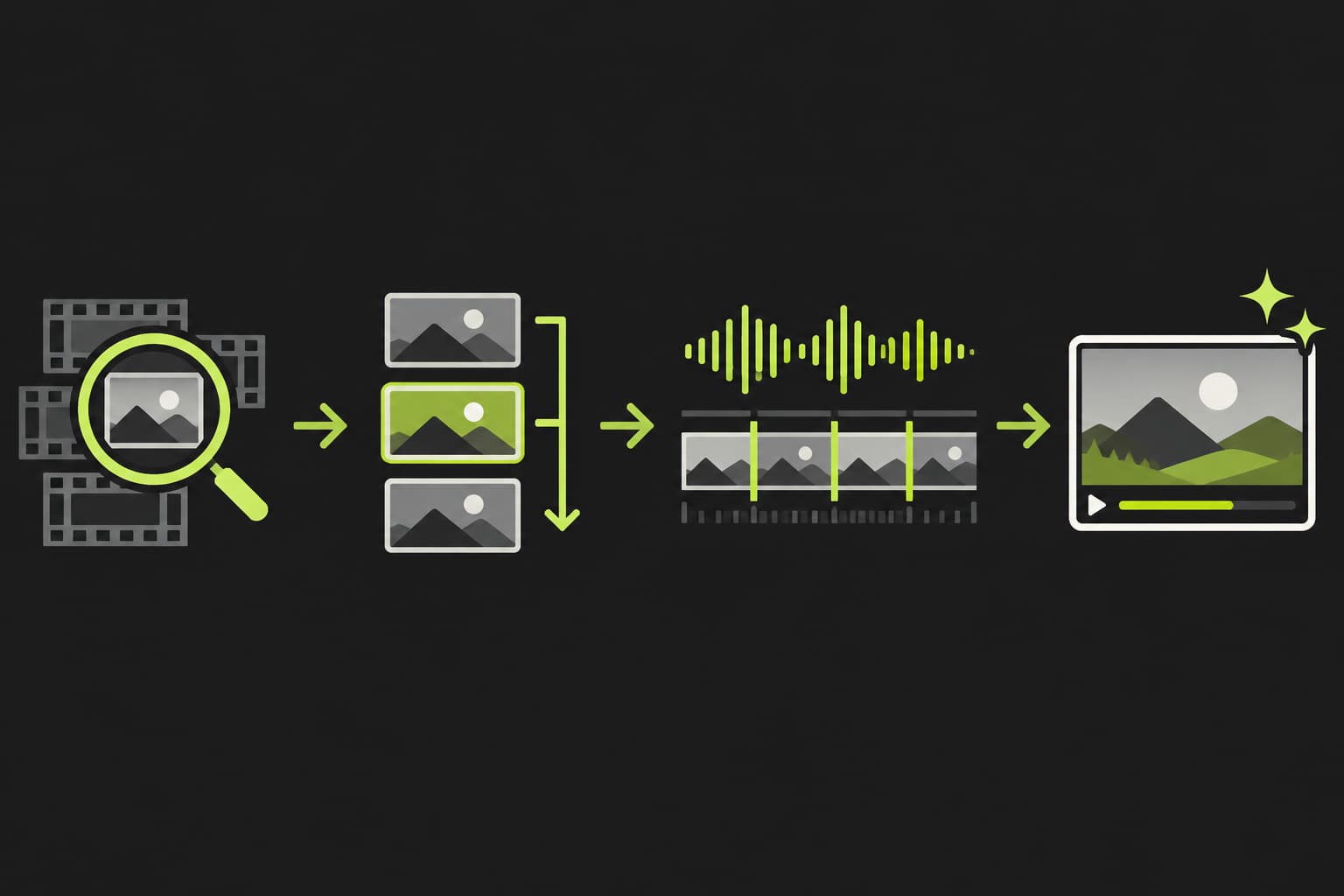
The fastest edit is the one with less to fix. A bullet-point outline (not a word-for-word script, unless that suits you) keeps you on topic, so pass 1 becomes picking takes instead of rescuing them.
Two filming habits pay off right away. First, when you fluff a line, pause, then restart the whole sentence: a clear gap is easy to spot in the waveform or transcript. Second, clap or say a marker word before a good take so you can find it later. Record a few seconds of room silence too; it makes podcast audio cleanup for video much easier.
Plan your opening on paper as well. If you know what your hook is before filming, you will not spend an hour searching the footage for one. Our page on YouTube intro editing and the first 30 seconds shows what a strong open needs.
What CreatorSuite sends back
A real upload next to the finished edit. Switch between short form and long form.
Templates and presets: stop rebuilding the same project
If every video starts with a blank project, you repeat the same 20 small decisions each week. Build a template once and duplicate it. A good template holds:
- Sequence settings for your format (resolution, frame rate) already set
- Labelled, colour-coded tracks: A-roll, b-roll, music, SFX, captions, graphics
- Your intro, outro, subscribe card and end screen placeholders in place
- Lower-third and title graphics with your fonts and colours
- A caption style preset and an export preset for YouTube
- Adjustment layers for your usual colour look, so colour correction starts from your own baseline
- A bin of music beds and SFX you have the rights to use
Shortcuts and transcript tools for the rough cut
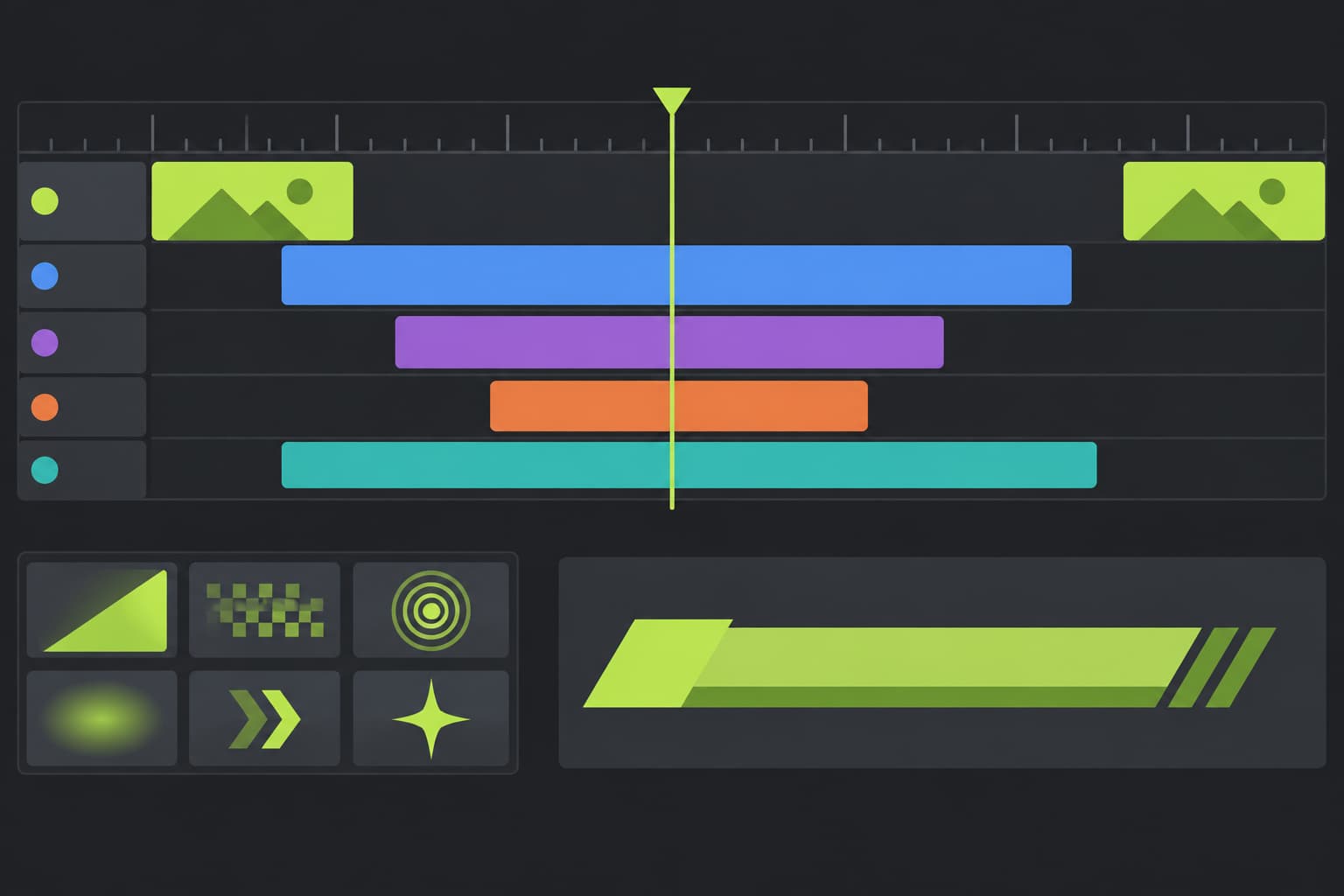
Once your project is set up, the remaining speed comes from your hands and from letting software do the first rough cut.
Keyboard shortcuts first. Learn the handful you use hundreds of times per edit: play and pause, playback speed (J, K, L in most editors), add edit or split at the playhead, ripple delete, and zoom the timeline. Adobe's help page for Premiere explains how to open Keyboard Shortcuts, assign a key to any command and save your own key set, and you can copy that set to another computer. If a command has no shortcut, give it one.
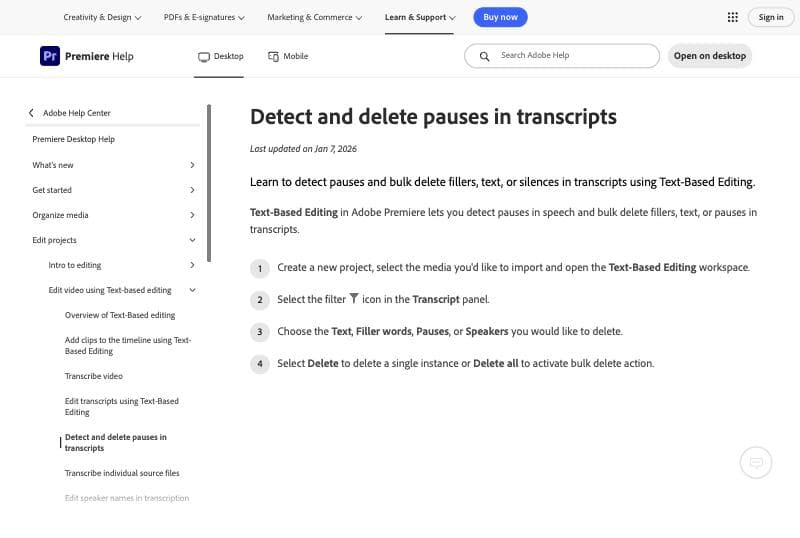
Transcript-based editing is the bigger win for talking-head videos. Premiere's Text-Based Editing lets you filter the transcript for filler words or pauses and delete one instance or all of them at once. Descript and similar apps work the same way: you edit the text and the video follows.
Check the joins, though. On Adobe's community forum one user reported that bulk pause removal still left noticeable gaps even with the minimum pause length set very low, and found the behaviour differed between app versions. A community expert suggested choosing Lift instead of Extract first, so the gaps stay visible on the timeline and you can review them. Treat bulk deletes as a first draft, then watch the result once at normal speed.
Worked example: how to edit a YouTube video faster, step by step
This is how to edit a YouTube video faster in practice. Here is how the pieces fit for a typical 10-minute talking-head video with some b-roll. Time each step on your next edit and compare it with your current total.
- Before filming: write a five-line outline (hook, three points, payoff). Film each point as its own block, restarting sentences after mistakes.
- Import: duplicate your template project, drop the footage into the A-roll bin, and let the editor transcribe it.
- Pass 1, select: in the transcript, delete restarts, tangents and repeated takes. Run filler-word and pause removal using Lift, then remove gaps you are happy with.
- Pass 2, story: drag the blocks into outline order. Watch once at 1.5x speed to check that it makes sense.
- Pass 3, pacing: tighten any stretch that drags, then add b-roll from your asset bin over the long explanations. Mark spots for zooms or on-screen text.
- Pass 4, polish: apply your caption preset, music bed from your library, SFX on cuts, your colour adjustment layer, and add YouTube chapters and timestamps from the outline.
- Export with your saved preset. Run through a short YouTube video editing checklist before uploading.
The order matters more than the tool. Keep captions, music and colour for the last pass and you stop redoing work.
Outsourcing: when to stop editing it yourself
Templates and passes will speed up video editing, but they do not remove it. If editing is the step that keeps you from posting on schedule, it may be time to outsource YouTube video editing, at least the repetitive parts. You have three main choices, each with real trade-offs:
| Option | Good for | Trade-offs |
|---|---|---|
| Freelance editor | Complex, story-driven videos and a consistent creative partner | You brief, review and manage revisions; quality and speed vary by person; you depend on their availability |
| AI apps you run yourself (clippers, caption apps, transcript editors) | Fast captions, clips and filler-word removal while you keep control | You still do the editing and the final pass; each app covers one part of the job |
| Done-for-you AI editing service | Regular talking-head, tutorial and vlog-style videos on a schedule | Less hands-on control than editing yourself; not built for heavily scripted, effects-heavy productions |
Where CreatorSuite fits
CreatorSuite is a done-for-you AI video editor: you upload raw footage (phone footage is fine), pick a style, and its AI handles the cuts, hook, captions, b-roll, motion design, sound and colour, then sends back a finished video ready to post. Long videos can be up to 35 minutes.
For a creator who posts one long-form video a month, the Basic plan is $9/month and covers 1 long-form video, back in 6-8 hours, with 2 revisions per edit and thumbnails included. Plus is $39/month for up to 5 long-form videos with unlimited re-edits and a brand kit, which does the same job as the template you would otherwise build. More than 2,700 creators used it in the last 7 days.
It is not the right choice for everything. If your channel depends on a very specific hand-made style, a freelancer may suit you better, and if you enjoy editing and only want to save time, the passes and templates above may be enough. To see if an AI video editing service fits your channel, the 3-day free trial covers 1 long video up to 10 minutes (card required), with a full refund before your second edit. You can also compare it with hiring freelance video editors or a caption app like Captions.
Your plan to edit YouTube videos faster this week
You do not need to change everything at once to edit a YouTube video faster. Pick the step that matches your biggest time sink and add one more each week. If you want the edits to keep viewers watching as well as save time, read our pillar guide on how to edit YouTube videos for retention next.
- Week 1: time two edits and find your biggest block.
- Week 2: build your template project and caption and export presets.
- Week 3: switch to the four-pass order and transcript-based rough cuts.
- Week 4: learn or assign shortcuts for your five most-used commands.
- Then decide: is the remaining editing time worth your hours, or should you outsource part of it?
What we read for this guide
- Why your edits are taking forever (and it's not the editor) - Creator Boost Tribe, Skool · skool.comCreator says messy takes, not Filmora, caused slow edits; replies cite b-roll hunting, app-hopping and 3-4 hours per 6-7 minute video.
- Detect and delete pauses in transcripts - Adobe Premiere Help · helpx.adobe.comSteps to filter filler words, pauses or speakers and bulk delete them in Text-Based Editing.
- Removing pauses using Text based editing still leaves a lot of room - Adobe Community · community.adobe.comUser reports leftover gaps after bulk pause removal; expert suggests Lift instead of Extract to review.
- Customize keyboard shortcuts in Premiere - Adobe Help · helpx.adobe.comHow to assign shortcuts, resolve conflicts and save a custom key set.
- Hours of recorded content and no time to edit? Here's what to do - Podcastle (async.com) · async.comArgues editing slows when selection, story and polish are mixed; recommends staged passes and batching.
- How to Edit 10x Faster in Premiere Pro - Gavin Herman (YouTube) · youtube.comTemplates, presets, custom commands and shortcut systems to remove repeated work.
How this page was made: written by Badar Munir and the CreatorSuite team with AI assistance, reviewed by James, from facts we checked ourselves and the sources listed above. Spotted something out of date? Email us and we’ll fix it.
how to edit a YouTube video faster: FAQs
How can I edit YouTube videos faster as a beginner?
Use one editor and learn its basic shortcuts, film with an outline so there is less to cut, and edit in passes: pick takes, order the story, tighten pacing, then add captions, music and colour last. Save your first finished project as a template for the next video.
Why does editing take so long?
Usually because of messy footage, polishing clips that later get cut, rebuilding the same project setup each week, and hunting for b-roll and music mid-edit. Time a couple of edits to see which of these is your main cause.
Do templates really speed up video editing?
Yes, because they remove repeated setup: sequence settings, labelled tracks, intro and outro, lower thirds, caption style and export settings are ready before you start. They help most for channels with a consistent format.
Is text-based editing good enough for a final cut?
It is very good for a rough cut, removing filler words, pauses and bad takes quickly. Users have reported leftover gaps or awkward joins after bulk deletes, so watch the result once and fix any cuts that feel abrupt.
When should I outsource YouTube video editing?
When editing is what stops you posting on schedule, or when your time is worth more spent on ideas, filming or sales. A freelancer suits complex, story-driven work; an AI editing service suits regular talking-head or tutorial videos.
How fast can CreatorSuite edit a long video?
Depending on the plan, edits come back in 3-4 hours (Growth), 5-6 hours (Plus and Starter) or 6-8 hours (Basic). Long videos can be up to 35 minutes, and the 3-day free trial covers one long video up to 10 minutes.
Rather not edit it yourself?
Upload raw footage, get a finished edit back. 3-day free trial: 1 short video, 3 clips or 1 long video up to 10 min.
2,700+ creators in the last 7 days
Start 3-day free trial