In shortRepurposing for LinkedIn video means cutting a long recording into short, standalone clips (usually vertical 4:5 or 9:16, under 15 minutes by LinkedIn's limit, with burned-in captions) and rewriting the hook and post text so each clip offers one clear professional takeaway. Change the framing, not just the crop: lead with the problem your audience has at work, and send people to the full recording at the end.
- LinkedIn accepts videos from 3 seconds to 15 minutes, at any aspect ratio from 1:2.4 to 2.4:1, up to 5 GB.
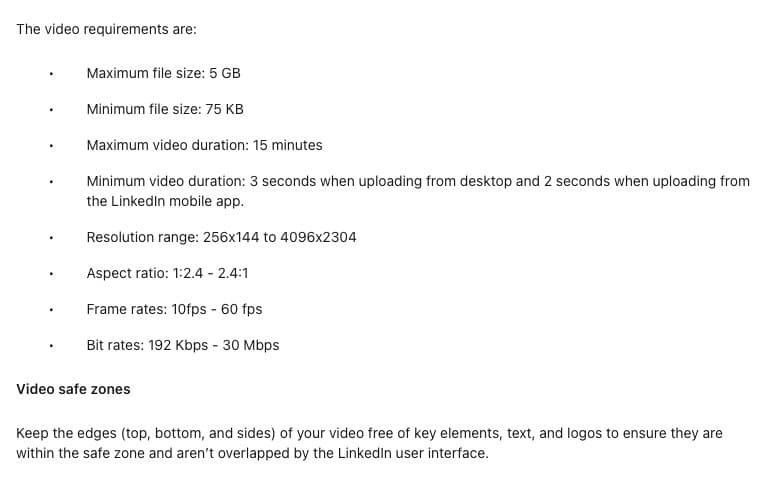
- Keep text and faces away from the edges: LinkedIn's own safe-zone diagram reserves space at the top, the right side and especially the bottom of a 1080x1920 frame.
- Rewrite the hook for a work problem, drop platform-specific calls to action like 'subscribe', and add burned-in captions.
- One 30-minute webinar can give you a week or more of standalone clips if each clip carries one idea.
- If your clips get impressions but no comments, the cause is usually topic fit or tone, not editing.
Why repurposing for LinkedIn video is different from other platforms
Repurposing for LinkedIn video is not the same job as reposting a Short or a Reel. People open LinkedIn to learn something they can use at work, hire, or get hired. A clip that opens with a reaction face and a trending sound reads as noise in that feed, even when the file meets every spec.
That gap shows up in what creators report. In Digiday's reporting on LinkedIn video, creators described becoming more deliberate about what they post there instead of cross-posting every video everywhere. One creator explained that a personal moment only works on LinkedIn once it is reframed around a business lesson. A social strategist at Hootsuite said she goes to LinkedIn to learn from thought leaders, not to watch video for its own sake. That is the tone bar you are writing for.
So the work splits in two. Format is the mechanical part: aspect ratio, length, captions, safe zones. Tone is the editorial part: which moment you pick, how the first seconds frame it, and what the post text asks the viewer to do. Most guides cover only the first. This one covers both, and it fits into a wider content repurposing workflow for creators if you publish on several platforms.
Why repurposed LinkedIn videos underperform: the real causes
Before you change your editing, work out which problem you actually have. Repurposing for LinkedIn video goes wrong for different reasons on different accounts. Low numbers on a repurposed clip can come from at least six different places, and only two of them are about the edit.
| What you see | Likely cause | How to check | What to change |
|---|---|---|---|
| Few impressions on every video, text posts do fine | Your audience follows you for text; video is a new habit for them | Compare video vs text impressions over your last 10 posts | Keep posting video, but pair it with strong post text and a clear topic |
| Impressions fine, very short watch time | The hook doesn't land in a professional feed | Watch the first 3 seconds with sound off: is the point obvious? | Open on the problem or the result, add a text headline on screen |
| Views but no comments | Topic doesn't touch your audience's work | Do the clips answer a question your buyers or peers ask? | Pick moments with a takeaway, a mistake or an opinion |
| Captions or face cut off by buttons | Ignored LinkedIn's safe zones | Preview on a phone before posting | Move captions up and keep key content in the centre |
| Video looks small or letterboxed | Posted a 16:9 file into a mobile-first feed | Check how it looks in the feed on a phone | Reframe to 4:5 or 9:16 |
| A sudden drop after months of steady reach | Platform changes, not your editing | Check whether peers saw the same drop | Keep a steady cadence; judge over weeks, not single posts |
Platform changes are real. Digiday reported that LinkedIn removed its dedicated video tab for users outside the U.S. in March 2025 as part of ongoing tests, and LinkedIn said this could explain some creators' drops. Don't rebuild your whole style on the back of one bad week.
LinkedIn video format: the specs that matter
LinkedIn's help page on sharing videos lists the hard limits. These are the numbers your export settings need to fit. Anything outside them either fails to upload or gets rejected.
Two practical notes. First, LinkedIn says you cannot post straight into its immersive video feed; videos appear there based on the quality and relevance of what you post normally. Second, captions can be added at upload: LinkedIn offers auto-captions (in 10 languages, per the help page), lets you review them, or accepts a caption file. Burned-in captions are still the safer choice because they look the same in every view and on every device.
| Setting | LinkedIn's limit | What to export |
|---|---|---|
| Length | 3 seconds (desktop) or 2 seconds (mobile) to 15 minutes | Most clips: 30 to 90 seconds, one idea each |
| File size | 75 KB to 5 GB | An MP4 at 1080 wide stays far below the cap |
| Aspect ratio | 1:2.4 to 2.4:1 | 4:5 or 9:16 for mobile, 1:1 as a middle ground |
| Resolution | 256x144 to 4096x2304 | 1080x1350 (4:5) or 1080x1920 (9:16) |
| Frame rate | 10 to 60 fps | Keep the source frame rate (often 25, 30 or 60) |
| Bit rate | 192 Kbps to 30 Mbps | Your editor's default 'high quality' preset is fine |
Picking an aspect ratio and respecting LinkedIn's safe zones
LinkedIn accepts nearly any shape, so the choice is about how the clip looks on a phone. A wide 16:9 clip takes a thin strip of the screen. A 4:5 clip fills most of the feed card. A 9:16 clip fills the screen in the immersive viewer. For a deeper side-by-side, see our guide to video aspect ratios explained.
The part people miss is the safe zone. LinkedIn's diagram for a 1080x1920 vertical frame marks space LinkedIn's interface can cover: about 260 pixels at the top, 560 at the bottom where the name and post text sit, 210 on the right where the buttons are, and 112 on the left. Put your captions in the band between those areas, not at the very bottom where a TikTok-style caption usually lives.
| Ratio | Best for on LinkedIn | Trade-off |
|---|---|---|
| 9:16 (1080x1920) | Talking-head clips viewed in the immersive player | Largest area lost to the interface; captions must sit higher |
| 4:5 (1080x1350) | Feed clips from podcasts, webinars, interviews | Small crop from vertical; less to fix if you reuse a Reel |
| 1:1 (1080x1080) | Clips with slides or two speakers side by side | Smaller on screen than vertical |
| 16:9 (1920x1080) | Screen recordings, product demos, full webinars | Looks small in a mobile feed |
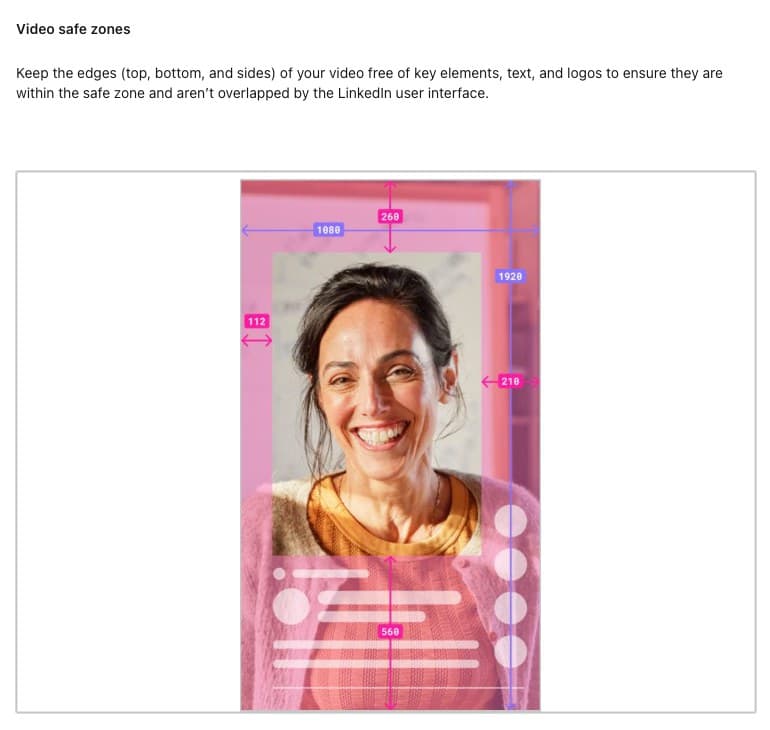
What CreatorSuite sends back
A real upload next to the finished edit. Switch between short form and long form.
Tone: rewriting a clip when repurposing for LinkedIn video
Format gets your clip to display properly. Tone decides whether anyone stops. The same 45 seconds of footage can work on LinkedIn once three things change: the hook, the on-screen headline and the ending.
Lead with the work problem, not the reaction. Name the role or situation the viewer is in. End with a takeaway or a question instead of a 'like and subscribe'. If the moment depends on context from earlier in the video, it is the wrong moment; each clip has to make sense on its own. Our talking head video editing tips cover the pacing side of this.
| Element | As posted on TikTok or Shorts | Rewritten for LinkedIn |
|---|---|---|
| First line spoken | 'You won't believe what happened on this call' | 'We lost a client in week one. Here's the onboarding step we added.' |
| On-screen headline | 'WAIT FOR IT' | 'The one onboarding email we now send on day 2' |
| Captions | Fast, one word at a time, emoji | Full phrases, readable at a glance, no emoji |
| Ending | 'Follow for part 2' | 'What do you send new clients in week one?' |
| Post text | Hashtags only | Two or three lines of context, a question, then a link to the full recording |
A useful test: would you be comfortable if your manager or your best client saw this clip with the sound off? If yes, the tone is right.
Worked example: one 30-minute webinar turned into five LinkedIn clips
Here is repurposing for LinkedIn video from start to finish on a realistic input: a 30-minute recorded webinar with one host and slides. The goal is five clips you can post over two weeks. The same steps apply when you turn a webinar into social videos for other platforms.
- Step 1, find the moments. Skim the transcript and mark every place the host states a tip, a mistake, a number from their own work, or a strong opinion. Aim for 8 to 10 candidates.
- Step 2, keep only standalone ideas. Drop any moment that needs earlier context ('as I said before…'). Five usually survive.
- Step 3, cut each to one idea. Trim to roughly 30 to 90 seconds. Start on the sentence that states the problem, not on the warm-up.
- Step 4, reframe to 4:5. Centre the speaker; if slides matter, use a split layout with the slide above and the face below.
- Step 5, add a headline and captions. Put a short headline in the top band and burned-in captions in the middle third, clear of LinkedIn's bottom safe zone.
- Step 6, write the post text. Two or three lines of context, one question for the comments, and a link to the full webinar.
- Step 7, schedule. Post the strongest clip first, then space the rest across the following two weeks.
The post text around your video
On LinkedIn the words above the video carry more weight than on video-first apps. Many people read the first lines before they decide to press play. Treat the post text as the hook's second half: say who the clip is for and what they'll get from it.
Jeff Bullas's forum answer on repurposing webinars for LinkedIn makes the same point: write a caption that adds context and invites discussion, then point people to the full recording at the end. Several vendor guides also claim external links reduce reach; LinkedIn hasn't published data on that, so test both placements on your own account rather than taking it as a rule.
If you are repurposing a YouTube video specifically, the post text is where you send people back to it. The clip earns attention on LinkedIn; the full video earns the subscriber. The same logic applies when you repurpose YouTube videos for Instagram.
Ways to do the repurposing work, with honest trade-offs
There are four realistic ways to handle repurposing for LinkedIn video. Which one fits depends on how many clips you need each month and how much of your own time you want to spend.
AI clipping apps like Vizard find moments automatically, but you still review every clip, fix the framing and rewrite the tone for LinkedIn yourself; our Vizard alternative page compares that route in detail. Freelancers can match your voice well once briefed, but rates, turnaround and quality vary a lot from person to person.
CreatorSuite is a done-for-you AI video editor: you upload the recording (up to 35 minutes for long videos), pick a style, and get back finished clips with cuts, hook, captions, b-roll and sound already done. A clip costs 25 credits, so the five clips in the worked example above use 125 of the 300 credits in the $9/month Basic plan, which covers up to 12 clips. The 3-day free trial includes 3 clips (card required). It is a good fit if you have the recordings but not the editing time; if you enjoy editing and only need one clip a month, a free app is the cheaper choice.
| Option | What you still do yourself | Best when |
|---|---|---|
| DIY in a free editor | Everything: finding moments, cutting, captions, reframing | You post rarely and enjoy editing |
| AI clipping app | Reviewing clips, fixing framing, rewriting hooks and tone | You want speed and will polish each clip |
| Freelance editor | Briefing, feedback rounds, managing deadlines | You need a consistent human style and have budget |
| Done-for-you AI video editing service | Upload the recording, write the post text | You have recordings but no editing time |
How to tell if your LinkedIn video repurposing is working
Judge clips over weeks, not single posts. LinkedIn's matching changes, and one creator in the Digiday piece noted that older videos kept getting surfaced to new viewers months later, so total views grew even when individual posts dipped.
Watch three things: whether the people commenting are the audience you want (peers, buyers, hiring managers), whether profile visits and messages pick up after video weeks, and which topics get comments rather than just impressions. Double down on the topics, not just the format. If one moment type keeps working, such as mistakes or behind-the-scenes numbers, mine every recording for more of it. One video, ten posts shows how to stretch a single recording further once you know what lands.
For founders and small teams who post on LinkedIn to win clients, a steady flow of clips matters more than a perfect one. If editing is the bottleneck, an AI video editing service like CreatorSuite can keep the schedule going (see how it works as an AI video editor for startup founders) while you focus on the recording itself.
What we read for this guide
- Share videos on LinkedIn (LinkedIn Help) · linkedin.comOfficial video requirements, caption options, safe-zone diagram, and that you can't post directly to the immersive feed.
- LinkedIn algorithm tweaks lead to views slump for some creators (Digiday) · digiday.comCreators report view drops, video tab removed outside the U.S., and creators reframing content for LinkedIn instead of cross-posting.
- What is the best way to repurpose a webinar for LinkedIn video content? (jeffbullas.com forum) · jeffbullas.comForum question from a marketer and answer: standalone 30-90s clips, burned-in captions, 1:1 or 4:5, caption with a link to the full webinar.
- LinkedIn Shares Technical Specs and Posting Tips for Video Content (Social Media Today) · socialmediatoday.comCoverage of LinkedIn's spec sheet and safe-zone guide.
- How To Create Better Short-Form Videos On LinkedIn (YouTube, Shanee Moret) · youtube.comCreator walkthrough of short-form video tips for LinkedIn.
How this page was made: written by Badar Munir and the CreatorSuite team with AI assistance, reviewed by James, from facts we checked ourselves and the sources listed above. Spotted something out of date? Email us and we’ll fix it.
repurposing for LinkedIn video: FAQs
What is the best aspect ratio for repurposing video for LinkedIn?
For mobile viewers, 4:5 (1080x1350) or 9:16 (1080x1920). LinkedIn accepts anything from 1:2.4 to 2.4:1, so 16:9 also uploads, but it looks small in a phone feed. Use 16:9 for screen recordings and demos.
How long should a repurposed LinkedIn video be?
LinkedIn allows 3 seconds to 15 minutes. Most repurposed clips work best at 30 to 90 seconds with one idea each, a range several practitioner guides recommend. Longer is fine for a full talk you want people to watch on LinkedIn.
How do I repurpose YouTube videos for LinkedIn without it feeling like a repost?
Pick standalone moments with a work takeaway, rewrite the opening line around a professional problem, remove 'subscribe' style endings, add burned-in captions and write two or three lines of post text with a question. Link to the full YouTube video at the end.
Can I post directly to LinkedIn's vertical video feed?
No. LinkedIn's help page says you can't post directly to the immersive video feed; it shows existing videos based on quality and relevance. Post normally from the share box, a Group or a Page.
Do I need burned-in captions if LinkedIn has auto-captions?
LinkedIn's auto-captions work in 10 languages and you can review them, but burned-in captions look the same everywhere and you control the wording and placement. For repurposed clips, burned-in captions placed above the bottom safe zone are the safer choice.
What is the cheapest way to turn a webinar into LinkedIn videos?
Doing it yourself in a free editor costs only your time. If time is the problem, CreatorSuite's Basic plan is $9/month and covers up to 12 clips, and the 3-day free trial includes 3 clips so you can test the result first.
Rather not edit it yourself?
Upload raw footage, get a finished edit back. 3-day free trial: 1 short video, 3 clips or 1 long video up to 10 min.
2,700+ creators in the last 7 days
Start 3-day free trial