
In shortUse 16:9 for normal YouTube videos, 9:16 for Shorts, Reels and TikTok, 4:5 for Instagram and LinkedIn feed posts, and 1:1 when you need one square file that works almost everywhere. Film wide with the subject centred, and crop each version from that master instead of stretching or adding black bars.
- 16:9 is landscape (1920x1080), 9:16 is full-screen vertical (1080x1920), 4:5 is tall feed (1080x1350) and 1:1 is square (1080x1080).
- YouTube treats square or vertical uploads of three minutes or less as Shorts, so the frame shape changes where your video is shown.
- Instagram Reels accept anything from 1.91:1 to 9:16, but the profile grid shows a taller crop from the middle, so keep faces and text centred.
- Never bake black bars into the file. YouTube's own help page says padding stops the player from adapting to the viewer's screen.
- Film once in 16:9 (4K if you can) with the subject in the centre third, then crop 9:16, 4:5 and 1:1 versions from it.
Video aspect ratios explained: what the two numbers mean
Here are video aspect ratios explained without jargon. An aspect ratio is the width of the frame compared with its height, written width:height. 16:9 means 16 units wide for every 9 units tall. It says nothing about quality. A 16:9 video can be 1280x720 or 3840x2160; both have the same shape.
To check a file, divide its width by its height. 1920 / 1080 = 1.78, which is 16:9. 1080 / 1920 = 0.56, which is 9:16. 1080 / 1350 = 0.8, which is 4:5. 1080 / 1080 = 1, which is 1:1. If someone asks what aspect ratio is 1080x1920, the answer is 9:16: the same shape as 16:9, turned on its side.
To work out a pixel size for any ratio, fix one side and scale the other. For a 4:5 video that is 1080 pixels wide, the height is 1080 x 5 / 4 = 1350. For a 9:16 video that is 1080 wide, the height is 1080 x 16 / 9 = 1920. That one sum answers most "what size should my export be" questions.
The four video aspect ratios at a glance
Almost every social platform today is built around one of four shapes. The table gives the common 1080-based export size and where each shape is native.
| Ratio | Common export size | Shape | Native home | Where it looks wrong |
|---|---|---|---|---|
| 16:9 | 1920x1080 | Landscape | YouTube long-form, TVs, laptops, webinars | Phone feeds: it fills only a thin strip of the screen |
| 9:16 | 1080x1920 | Full-screen vertical | YouTube Shorts, Instagram Reels, TikTok, Stories | Desktop players, which add padding on both sides |
| 4:5 | 1080x1350 | Tall portrait | Instagram feed posts, LinkedIn and Facebook feeds | Shorts and Reels viewers, where it does not fill the screen |
| 1:1 | 1080x1080 | Square | Carousels, feed posts, ads that run in many placements | Full-screen vertical viewers and YouTube long-form |
Resolution and ratio are separate choices. Pick the ratio for where the video will be watched, then the largest resolution your footage supports.
Video aspect ratios explained by platform
Platform rules are where most mistakes start, so this is the part of video aspect ratios explained that saves the most re-uploads. These are the limits from each platform's own help pages, plus what that means in practice.
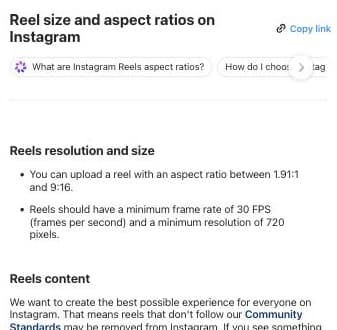
Instagram's help centre says you can upload a reel with an aspect ratio between 1.91:1 and 9:16, with a minimum frame rate of 30 FPS and a minimum resolution of 720 pixels. In practice 9:16 is still the best aspect ratio for Reels, because it is the only shape that fills the full-screen viewer. Buffer reports that the profile grid now shows posts as 4:5 previews and Reels as taller 3:4 previews, so the top and bottom of a 9:16 Reel are hidden on your profile. For a step-by-step on moving clips between the two apps, see repurposing YouTube videos for Instagram.
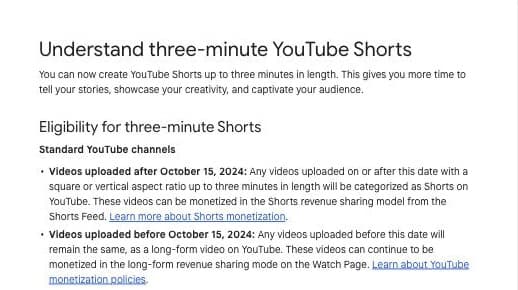
YouTube's help page says the standard ratio on a computer is 16:9 and that the player adapts to other shapes. Its Shorts page says any video uploaded on or after October 15, 2024 that is square or vertical and up to three minutes long is categorised as a Short. So the youtube shorts aspect ratio question has a simple answer: 9:16 if you want a full-screen Short, 1:1 if you accept bars, and 16:9 if you want it treated as a regular video.
LinkedIn's help page lists an accepted aspect ratio range of 1:2.4 to 2.4:1, a 15-minute maximum and a 5 GB file limit, and asks you to keep text and logos away from the edges so the interface does not cover them. That makes the aspect ratio for LinkedIn video flexible; 4:5 or 1:1 take up more of a phone feed than 16:9 without looking like a TikTok repost. Our guide to repurposing for LinkedIn video covers tone and length.
| Where it will be watched | Ratio to export | Notes from the platform |
|---|---|---|
| YouTube long-form | 16:9 | Standard ratio on computers; do not add black bars |
| YouTube Shorts | 9:16 (or 1:1) | Square or vertical and up to three minutes is categorised as a Short |
| Instagram Reels | 9:16 | Accepted range is 1.91:1 to 9:16; minimum 720 pixels, 30 FPS |
| Instagram feed post | 4:5 | Profile grid shows a taller crop; keep the subject centred |
| TikTok | 9:16 | Full-screen vertical is the format the app is built around |
| LinkedIn feed | 4:5 or 1:1 (16:9 also works) | Accepted range 1:2.4 to 2.4:1; up to 15 minutes; keep edges clear |
The problems creators actually run into
Reading forum threads about aspect ratios, the same handful of problems come up again and again. Each has a different cause, so it helps to name them.
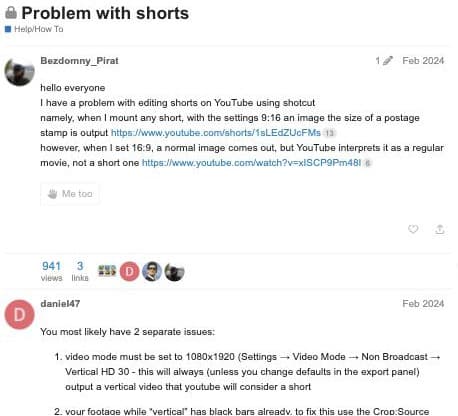
The postage-stamp Short. A Shotcut forum user exported a Short in 9:16 and got a tiny picture in the middle of the frame, but when they exported in 16:9 the picture looked normal and YouTube treated it as a regular video. The reply pointed to two separate causes: the project was not set to a vertical 1080x1920 video mode, and the source clips already had black bars baked in, so the bars got boxed a second time.
Bars added on purpose. Many creators pad a landscape clip with black or blurred bars to make it "vertical". YouTube's help page asks you not to do this, because padding interferes with the player resizing itself for the viewer's device.
Auto-reframe losing the subject. In a long Adobe Community thread, Premiere Pro users describe Auto Reframe drifting off a moving subject in a 16:9 clip turned 9:16, stalling during analysis, or only writing a couple of keyframes. One workaround that helped a poster was untick "Scale to frame size", delete the Auto Reframe effect and add it again. Others ended up keyframing position by hand.
Grid crops. Since Instagram moved to taller grid previews, Reels with text near the top or bottom lose it on the profile page, and older square posts get trimmed at the edges.
What CreatorSuite sends back
A real upload next to the finished edit. Switch between short form and long form.
How to tell which aspect ratio problem you have
Before re-editing anything, run these checks in order. Most issues are found in the first three.
- Check the export settings, not the timeline preview. A 9:16 export should read 1080x1920 (or 720x1280). If it says 1920x1080, your project is still landscape.
- Open the source clip on its own. If it already has black bars, crop them off (Shotcut's Crop: Source filter, or the crop tool in any editor) before reframing.
- Look at where the video is shown. A vertical video on YouTube desktop will have padding; that is normal and not a fault in your file.
- Check the length and shape against YouTube's Shorts rule: square or vertical and three minutes or less becomes a Short. If you want a regular video, make it 16:9.
- Check the profile view, not only the post. Open your Instagram grid and see whether faces or titles are cut off by the taller preview crop.
- Check safe zones. Captions, usernames and buttons sit over the bottom and right edge of vertical viewers, and LinkedIn asks for clear edges too. Keep text in the middle.
Video aspect ratios explained by use: when to pick 9:16, 4:5, 1:1 or 16:9
The 9:16 vs 4:5 choice is the one people ask about most. Use 9:16 when the video lives in a full-screen vertical feed: Shorts, Reels, TikTok and Stories. Use 4:5 when the video is a feed post someone scrolls past among photos and text, such as an Instagram feed post or a LinkedIn update. A 4:5 aspect ratio video takes up most of a phone screen in a feed but still leaves room for the caption and buttons around it.
Use 1:1 when one file has to run in many places at once, such as an ad or a carousel, and you would rather accept a smaller frame than make four versions. Use 16:9 for anything watched on a laptop or TV: YouTube long-form, webinars, course lessons and tutorials where screen recordings need the width.
- Talking-head clip for Reels, Shorts and TikTok: 9:16.
- Quote clip or announcement for the Instagram feed or LinkedIn: 4:5.
- Paid ad running across feeds and placements: 1:1, plus a 9:16 version for full-screen placements.
- Screen-share tutorial, podcast episode or vlog for YouTube: 16:9.
Worked example: one 16:9 recording cut for four platforms
Say you record a 20-minute podcast episode in 16:9 with one camera, and you want a YouTube episode, three Shorts, one Instagram feed post and one LinkedIn clip. This is the flow, with the numbers worked out, so you can see video aspect ratios explained on a real project rather than in theory.
Step 1, the master. Export the full episode at 16:9. If you filmed at 3840x2160 (4K), keep that as your master. If you filmed at 1920x1080, that is your master.
Step 2, the 9:16 Shorts. A vertical crop keeps the full height and takes a narrow slice of the width. From a 1080-pixel-tall frame, the slice is 1080 x 9 / 16 = about 608 pixels wide, which then has to be scaled up to 1080x1920 and will look soft. From a 4K master the slice is 2160 x 9 / 16 = 1215 pixels wide, already larger than 1080, so it scales down cleanly. This is why people who plan to make vertical clips film in 4K.
Step 3, the 4:5 feed post. From a 1080-tall frame, a 4:5 slice is 1080 x 4 / 5 = 864 pixels wide; from 4K it is 1728 wide. Both crops keep much more of the scene than 9:16, so a two-person shot often still fits.
Step 4, the LinkedIn clip. Reuse the 4:5 crop, or make a 1:1 crop (1080x1080 from a 1080 master). Keep captions inside the centre so the edges stay clear, as LinkedIn asks.
Step 5, check each export: dimensions, length (Shorts at three minutes or less), and the subject still in frame through the whole clip. If the speaker moves, add position keyframes so the crop follows them. Our guide to repurposing long videos into Shorts shows how to pick the moments worth clipping.
| Version | Ratio | Crop from 1920x1080 | Crop from 3840x2160 |
|---|---|---|---|
| YouTube episode | 16:9 | Full frame | Full frame |
| Shorts and Reels | 9:16 | About 608x1080, scaled up | 1215x2160, scaled down to 1080x1920 |
| Instagram or LinkedIn feed | 4:5 | 864x1080 | 1728x2160, scaled to 1080x1350 |
| Square post or ad | 1:1 | 1080x1080 | 2160x2160, scaled to 1080x1080 |
How to film so every crop works
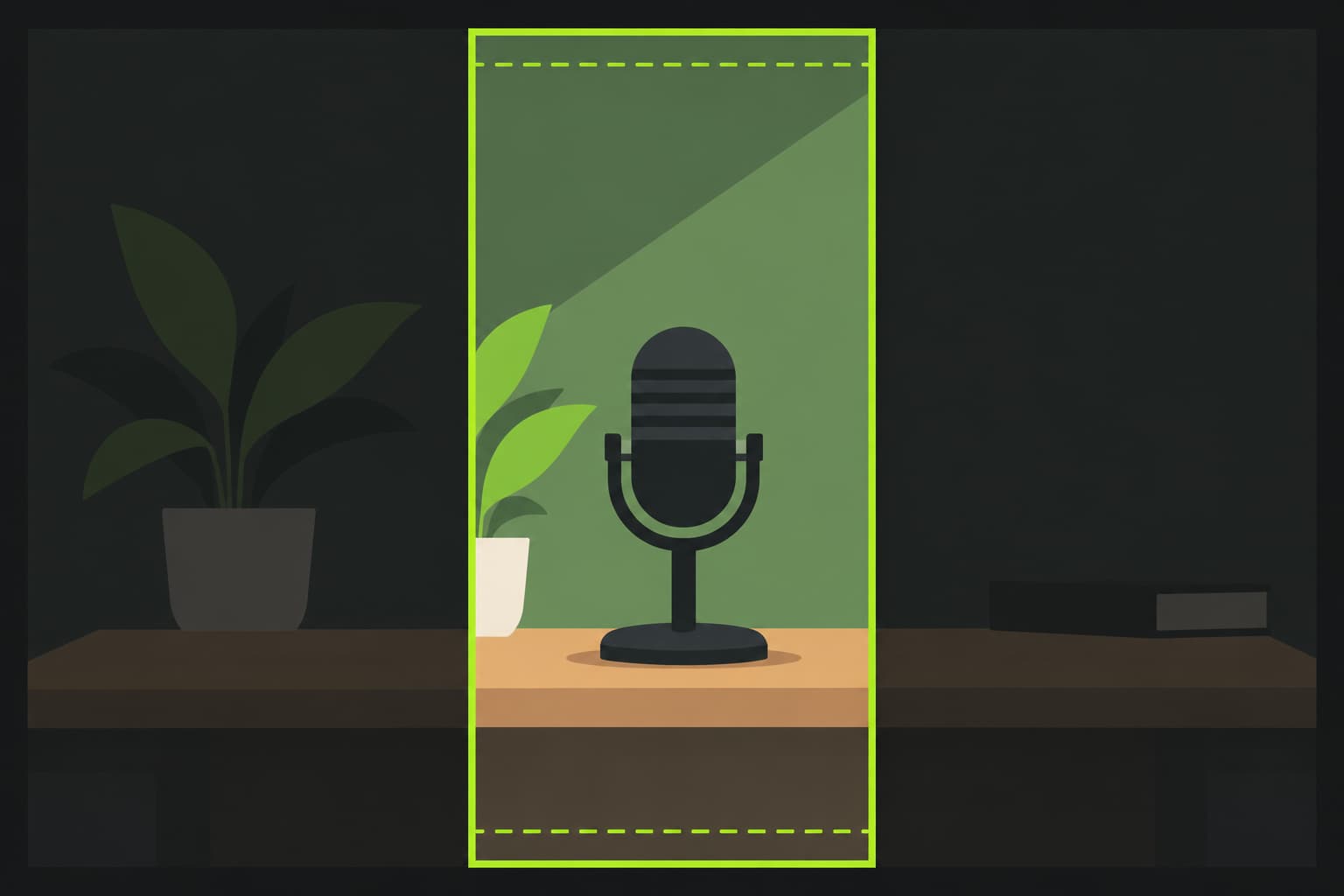
With video aspect ratios explained, the practical lesson is this: most aspect ratio problems are decided when you press record, not when you edit. A few habits make every later crop easy.
- Frame the subject in the centre third of a 16:9 shot. That area survives the 9:16, 4:5 and 1:1 crops.
- Leave headroom above and some space below the chin, because vertical crops show more of the top and bottom of the frame.
- Film in 4K if your camera or phone allows it, so vertical crops stay sharp.
- For two people, sit them closer together than feels natural, or film each with their own camera, so a vertical crop can cut between them.
- Keep slides, lower thirds and on-screen text in the centre, or add them after cropping.
- If a video will only ever be vertical, film it vertical. Cropping is for when one recording has to serve several shapes.
Ways to reformat video: DIY, apps, freelancers or a done-for-you service
Once you have the video aspect ratios explained and know which shapes you need, there are four realistic ways to produce them. Each suits a different amount of time and budget.
Free editors (Shotcut, CapCut, DaVinci Resolve and others) let you set a vertical project and crop by hand. They cost nothing, but keyframing a moving subject through a long clip is slow. Auto-reframe features in paid editors save time on simple shots, though the Adobe thread above shows they can drift and still need checking.
Browser editors and clipping apps resize and caption quickly; if that is the route you are weighing, our Kapwing alternative page compares the trade-offs. You still choose the clips, fix crops and write hooks yourself.
Freelancers can handle the whole repurposing job, at whatever rate you agree, but you manage briefs, files and revisions.
A done-for-you AI video editor like CreatorSuite is the option when you would rather not do the cropping at all. You upload raw footage, phone footage included, pick a style, and CreatorSuite's AI handles cuts, hook, captions, b-roll, motion design, sound and colour, then sends back a finished, ready-to-post video. Plans start at $9/month (300 credits: up to 3 short videos, 1 long-form video or 12 clips), and long videos can be up to 35 minutes. If you only need a single landscape clip turned vertical once, a free editor is the cheaper choice.
| Option | Cost | Your time | Best for |
|---|---|---|---|
| Free editor, manual crop | Free | High: set up, crop and keyframe every clip | Occasional clips, full control |
| Editor with auto-reframe | Paid software | Medium: check and fix each result | Static talking-head shots |
| Clipping or browser apps | Free tiers and paid plans | Medium: pick clips, fix crops, write hooks | Fast resizing and captions |
| Freelancer | Whatever rate you agree | Medium: briefs and feedback | Custom work, one person to talk to |
| Done-for-you AI video editing service (CreatorSuite) | From $9/month | Low: upload footage and pick a style | Regular posting across several platforms |
Export checklist and where CreatorSuite fits
Before you publish, run through this list for each version. It catches nearly every problem described above.
If you post several shapes every week, this checklist turns into a part-time job. That is where an AI video editor earns its place: CreatorSuite returns edits for each format you need, and the 3-day free trial covers 1 short video, 3 clips or 1 long video up to 10 minutes (card required), with a full refund before your second edit. For the bigger picture, our content repurposing workflow for creators and short-form video editing workflow show how the formats fit into a weekly schedule, and the Instagram Reels editing service page covers Reels on their own.
- Dimensions match the ratio: 1920x1080, 1080x1920, 1080x1350 or 1080x1080.
- No black or blurred bars baked into the file.
- Subject stays in frame for the whole clip, with keyframes where they move.
- Captions and text sit inside the centre, clear of buttons and edges.
- Shorts are three minutes or less; landscape videos you want treated as long-form are 16:9.
- Reels look right in the profile grid preview, not only in the feed.
What we read for this guide
- Reel size and aspect ratios on Instagram (Instagram Help Centre) · help.instagram.comReels accept 1.91:1 to 9:16, minimum 30 FPS and 720 pixels; cover photo 420x654.
- Understand three-minute YouTube Shorts (YouTube Help) · support.google.comSquare or vertical uploads up to three minutes after October 15, 2024 are categorised as Shorts.
- Video resolution and aspect ratios (YouTube Help) · support.google.com16:9 is standard on computers; avoid adding padding or black bars to the file.
- Video sharing troubleshooting (LinkedIn Help) · linkedin.comAspect ratio 1:2.4 to 2.4:1, 15-minute max, 5 GB, keep edges clear for safe zones.
- Problem with shorts (Shotcut Forum) · forum.shotcut.orgUser's 9:16 Short came out tiny; causes were a landscape video mode and black bars in the source.
- Premiere Pro Auto Reframe no longer working (Adobe Community) · community.adobe.comUsers report Auto Reframe drifting off subjects and stalling; one workaround listed.
- Instagram's grid just changed (Buffer) · buffer.comProfile grid moved from 1:1 to 4:5 previews for posts and 3:4 for Reels.
How this page was made: written by Badar Munir and the CreatorSuite team with AI assistance, reviewed by James, from facts we checked ourselves and the sources listed above. Spotted something out of date? Email us and we’ll fix it.
video aspect ratios explained: FAQs
What aspect ratio is 1080x1920?
1080x1920 is 9:16, full-screen vertical video. It is the standard export size for YouTube Shorts, Instagram Reels, TikTok and Stories.
Is 9:16 or 4:5 better for Instagram?
For Reels, 9:16 fills the full-screen viewer, so it is the best aspect ratio for Reels. For feed posts, 4:5 takes up most of the screen while matching the grid preview. Many creators post Reels in 9:16 and keep faces and text in the centre so the grid crop still looks right.
Will a 16:9 video become a YouTube Short?
No. YouTube categorises uploads as Shorts when they are square or vertical and three minutes or less. A 16:9 video is treated as a regular long-form video.
Should I add black bars to make a landscape video vertical?
Avoid it. YouTube's help page says padding or black bars added to the file interfere with the player adapting to the viewer's device. Crop and reframe instead, or film vertically.
What is the best aspect ratio for LinkedIn video?
LinkedIn accepts anything from 1:2.4 to 2.4:1. 4:5 or 1:1 take up more of a phone feed than 16:9, and 16:9 still works well for webinars and screen recordings. Keep text away from the edges.
Why does my vertical video look blurry after cropping?
A 9:16 crop from a 1920x1080 frame is only about 608 pixels wide, so it has to be scaled up. Film in 4K, where the crop is 1215 pixels wide, or film vertically when the video will only be used vertically.
Rather not edit it yourself?
Upload raw footage, get a finished edit back. 3-day free trial: 1 short video, 3 clips or 1 long video up to 10 min.
2,700+ creators in the last 7 days
Start 3-day free trial