In shortAI caption generators all start from speech recognition, so the first draft is usually close but still misses names, jargon, homophones and timing. The real differences are the correction workflow, the caption styles on offer, and the export: burned-in captions for short-form feeds, an SRT or VTT file for YouTube search and accessibility, and often both.
- Treat every AI caption as a draft: names, brand terms, numbers and homophones are where errors cluster.
- Burned-in captions travel with the file and show on every platform; SRT files can be switched off and edited after upload.
- On YouTube, an SRT carries plain text only, so styled captions have to be burned into the video.
- For Shorts, Reels and TikTok, many creators burn in styled captions and still upload a clean SRT where the platform allows it.
- Pick a tool by its correction screen and export options, not by its accuracy claim.
What AI caption generators actually do
If you have searched for AI caption generators compared side by side, you have probably noticed that every tool's own page claims near-perfect accuracy. That claim tells you very little. Almost all of these tools do the same three jobs: speech recognition turns your audio into text with timestamps, the tool splits that text into short caption lines, and then it either draws the lines onto the video or exports them as a subtitle file.
The differences that matter to a creator sit around that core. How fast can you fix a wrong word? Can you change a word in one place and have every repeat update? Which looks can it draw: plain subtitles, word-by-word highlights, big centre-screen text? And does it give you a video with captions baked in, a separate SRT or VTT file, or both?
This guide compares the types of tool on those points, shows where accuracy breaks and why, and walks through a captioning workflow you can copy. If you want the wider picture of editing tools first, start with our guide to the best AI video editors for creators.
AI caption generators compared: the four kinds of tool
Most options fall into four groups. Each one can be the right choice; it depends on how many videos you post, where you post them, and how much styling you want.
| Type of tool | What you get | Strong at | Weak at |
|---|---|---|---|
| Platform auto-captions (YouTube, TikTok, Instagram) | Captions generated by the platform after upload | Free, no extra step, viewer can switch them off | Little or no styling, may arrive late, errors need fixing inside the platform |
| Captions inside a general video editor (CapCut, Descript, Premiere and similar) | Captions on your editing timeline, export burned-in or as a file | Full control alongside your cuts, one place for the whole edit | You do the editing and styling work yourself |
| Dedicated caption apps (Submagic and similar) | Styled, animated captions in a few clicks, often with extras | Fast short-form looks, preset styles | Less control over the wider edit; check what export formats your plan includes |
| Done-for-you editing services | A finished video with captions already styled and placed | No time spent on captions or editing | Less hands-on control of every frame than doing it yourself |
Two questions narrow the field fast: do you need a separate subtitle file for YouTube, and do you want animated, styled captions for short-form? Most creators need both, which rules out tools that only do one.
How accurate are auto captions? Where AI caption generators go wrong
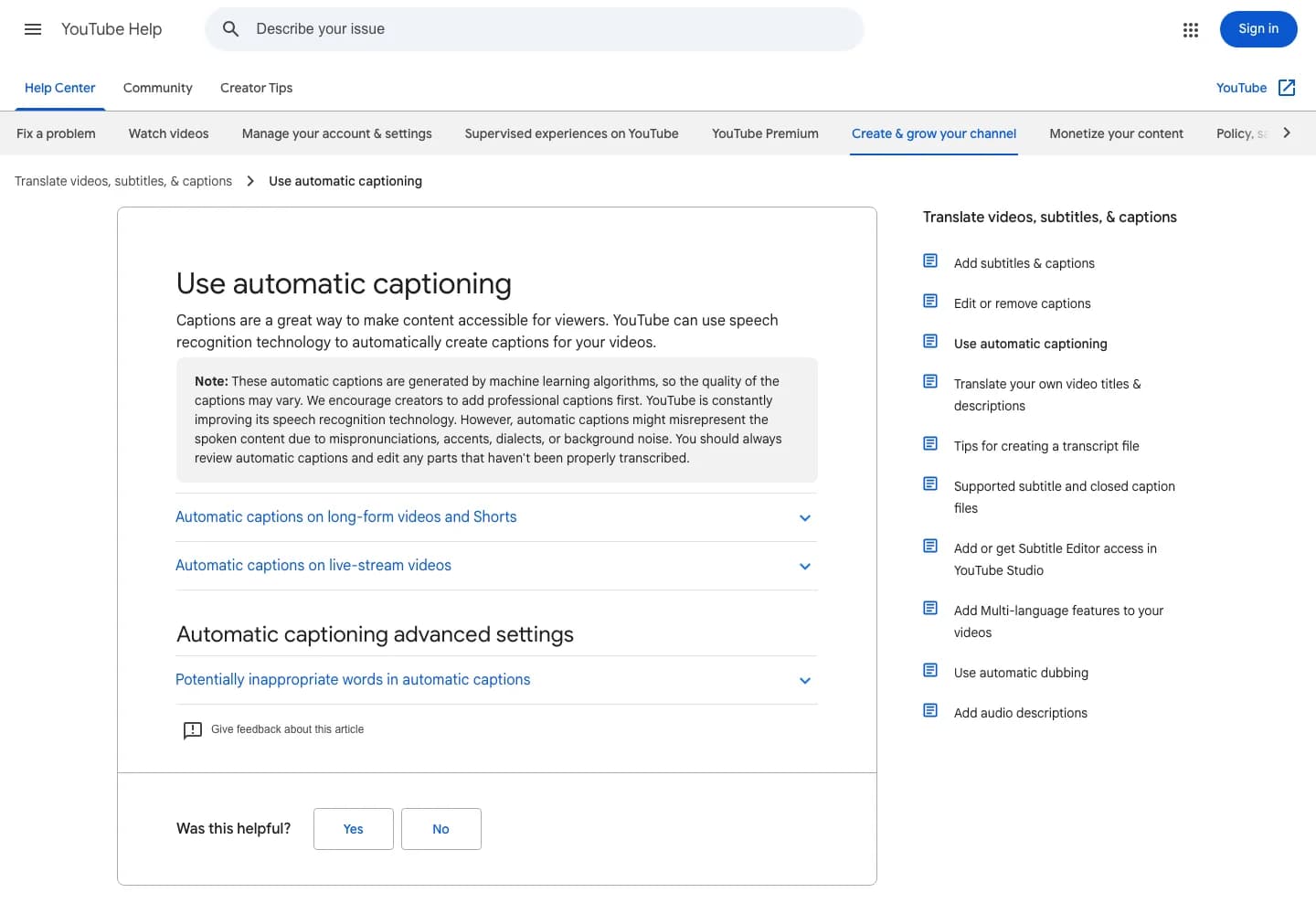
Speech recognition has improved a lot, but the errors have not disappeared; they have moved to predictable places. YouTube's own help page on automatic captioning says the quality of machine captions may vary and that they can misrepresent speech because of mispronunciations, accents, dialects or background noise. It tells creators to review automatic captions and fix anything that was not transcribed properly.
University accessibility guides that teach staff to clean up auto-captions list the same patterns again and again: specialised terms misheard as everyday words, homophones spelled wrong ("scents" for "sense"), timing that drifts out of sync, awkward line breaks and inconsistent number formatting. A caption-tool vendor's own guide adds names, brand terms, overlapping speakers and speech over music to that list.
Reviews of caption apps point the same way. On Trustpilot, many reviewers of one popular caption app praise how quickly and accurately captions appear, while a few mention that they still read captions through before publishing. So the honest summary is: the first draft is usually close, and the last few errors are the ones viewers notice.
- Names of people, places and products, especially unusual spellings.
- Jargon and acronyms: your niche's vocabulary is the first thing a general model mishears.
- Homophones: there/their, sense/scents, brake/break.
- Numbers and prices: "fifteen" vs "fifty" changes the meaning of an offer.
- Fast speech, crosstalk, music under the voice, and long silences at the start.
- Timing: lines that appear early or late, or stay on screen after the speaker moves on.
How to measure accuracy yourself: take a 60-second clip, generate captions, then count every wrong, missing or extra word. Divide by the total words spoken. Do the same clip in each tool you are considering. Your own audio, accent and vocabulary will tell you more than any figure on a sales page.
Burned-in captions vs SRT: which one you need
This is the decision most comparisons skip. Burned-in captions (also called open captions) are drawn into the video pixels. They show on every platform, in every app and every repost, exactly as you styled them, and nobody can turn them off. Closed captions live in a separate file, usually SRT or VTT, that the platform plays on top of the video. Viewers can switch them on or off, and you can correct a typo after upload without re-exporting the video.
Kapwing's explainer on captions and subtitles makes the same split: closed captions can be toggled by the viewer and are often uploaded as SRT files, while open captions are permanent and can't be turned off. It also notes the trade-off for accessibility rules: open captions alone don't carry speaker labels and sound cues in a form assistive tools can use.
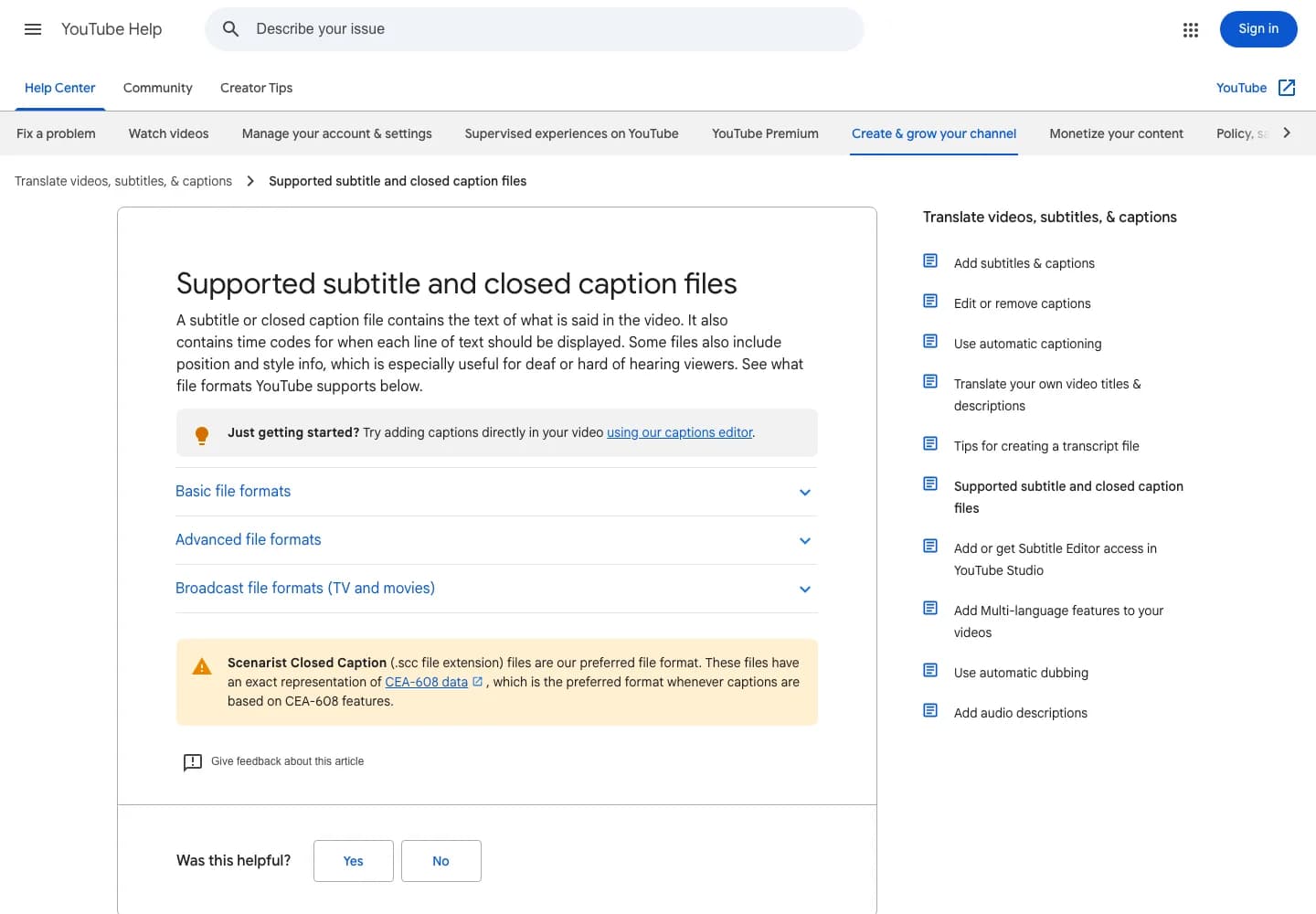
On YouTube there is one more detail that settles the styling question. YouTube's list of supported subtitle files says basic SRT files carry no style information: plain UTF-8 text and timings only. So if you want the bold, highlighted, word-by-word look, it has to be burned in. The SRT is for accessibility, translation and a clean, editable text track.
What CreatorSuite sends back
A real upload next to the finished edit. Switch between short form and long form.
Caption styles compared: what fits which video
Style is where AI caption generators differ most visibly, and where taste matters more than features. A style that works on a fast talking-head Short can make a calm tutorial feel frantic. Match the style to the pace of the video and to where the eye already is.
Placement matters as much as the font. Keep captions out of the bottom strip where Shorts, Reels and TikTok put their buttons and description, off faces, and off any product label or on-screen graphic. Check each aspect ratio separately: a position that works in 16:9 often lands on a chin in 9:16. Line length matters too; short lines of a few words read faster on a phone than long sentences. If you are deciding how long the clip itself should be, our guide to the best length for Reels, Shorts and TikTok covers that side.
- Word-by-word highlight: one or two words lit up as they are spoken. Good for punchy short-form and hooks; tiring over a 20-minute video.
- Two-line subtitle at the bottom: the classic look. Good for long-form, interviews and courses; easy to read and rarely covers anything important.
- Big centre-screen words: high energy, suits faceless Reels and voiceover clips where there is no face to cover. See our guide on how to make faceless Reels.
- Keyword emphasis: most words plain, key words in a brand colour or larger size. A middle ground that keeps attention without shouting.
- Speaker-coloured lines: each person gets a colour. Useful for podcasts and interviews with two or more voices.
Worked example: captioning one video for YouTube and Shorts
Here is a workflow for a 10-minute YouTube video that you also cut into a 45-second Short. It works with almost any AI caption generator, because the steps are about checking and exporting, not about one product.
For a weekly creator, steps 3 and 4 are where the time goes; the AI generation itself takes minutes. That is the honest way to compare tools: time how long your correction passes take in each one, on your own footage.
- 1. Start with clean audio. Trim the long silence at the start and reduce background noise before you transcribe; YouTube lists silence at the start, poor sound and overlapping speakers among the reasons automatic captions fail.
- 2. Give the tool a word list if it accepts one: your name, channel name, product names and niche terms. Then generate captions.
- 3. Do a sound-on pass. Read along while listening and fix names, numbers and homophones. Use find-and-replace for any word that repeats.
- 4. Do a sound-off pass. Watch muted and check the captions alone carry the message, and that no line sits on screen too long or too short.
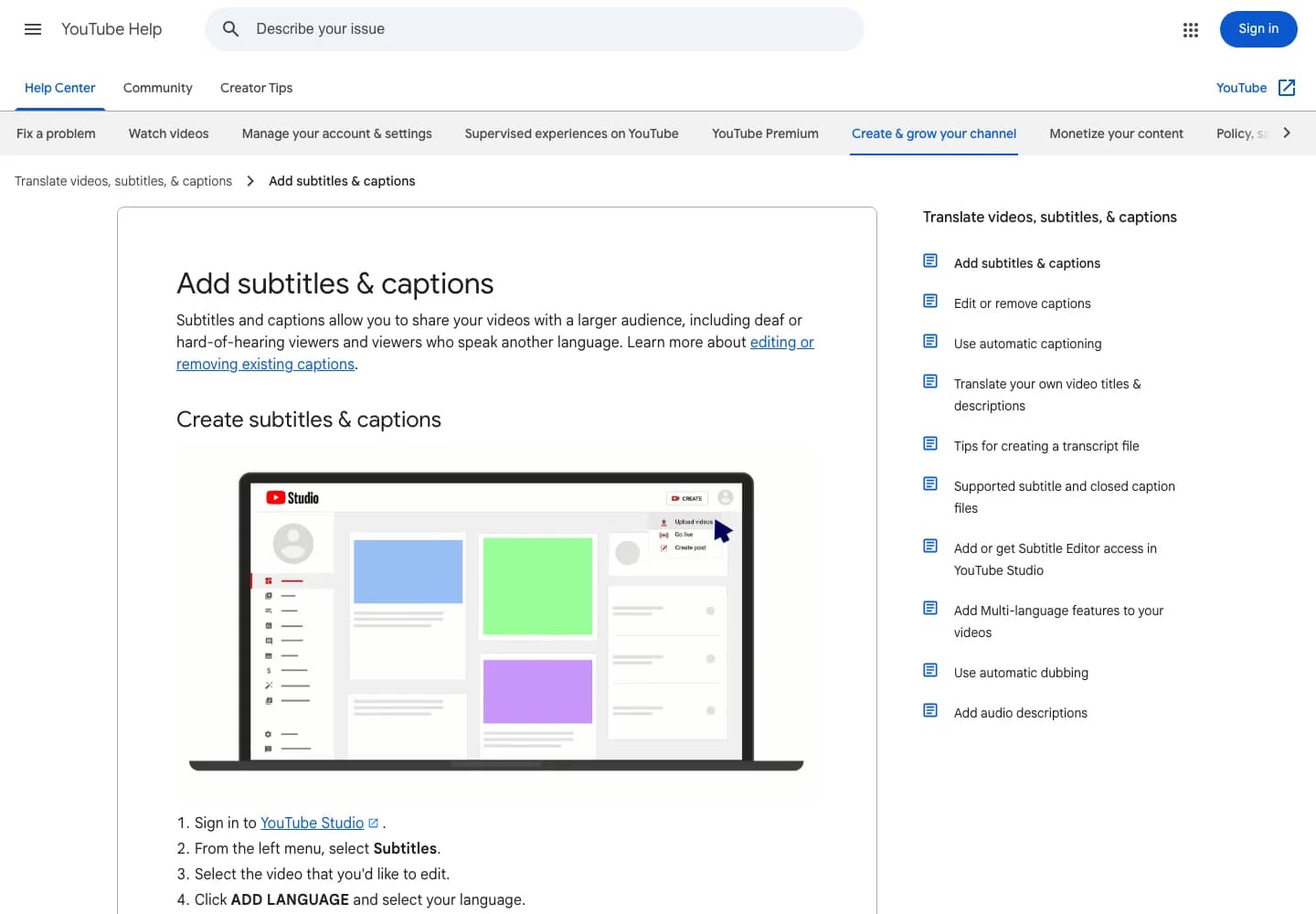
- 5. Export an SRT of the long video. In YouTube Studio, go to Subtitles, pick the video, add the language, choose Upload file, then With timing, and save.
- 6. If YouTube also made an automatic track, check which track viewers see first, so your corrected file is the one in use.
- 7. For the Short, apply a styled caption look (word highlight or keyword emphasis), move it above the platform buttons, and export with captions burned in.
- 8. Re-check the Short's first three seconds at full size on a phone. That is where the hook lives, and where a caption error costs you the most.
Which AI caption generator fits which creator
There is no single best AI caption generator; there is a best fit for how you work. Use this as buying advice, then test on your own clip before you commit.
- You post long-form YouTube and care about search and accessibility: start with YouTube's own captions or your editor's transcript, correct it, and upload an SRT. Styling matters less here.
- You already edit every video yourself: use the captions inside the editor you already use, so captions move with your cuts. Our Descript alternative page compares that workflow with done-for-you editing.
- You post several Shorts or Reels a week and want animated captions fast: a dedicated caption app is built for that job. Read our Submagic alternative comparison to see where caption apps fit and where they stop.
- You cut clips out of long podcasts or streams: captioning is one step of a clipping workflow; see the best AI clipping tools for long videos.
- You teach or train: accuracy on technical terms matters more than style, so budget time for a careful correction pass. Our page on the AI video editor for online educators covers course-style video.
- You would rather not edit at all: a done-for-you service hands back a finished video with captions already styled, alongside the cuts, b-roll and sound.
Where CreatorSuite fits among AI caption generators
CreatorSuite is not a caption app. It is an AI video editor run as a done-for-you service: you upload raw footage, phone footage is fine, pick a style, and CreatorSuite's AI edits the whole video, including cuts, the hook, captions, b-roll, motion design, sound and colour, then sends back a finished, ready-to-post video. Captions come styled and burned into the edit as part of that.
It makes sense when captions are one of many jobs you are doing by hand and the whole edit is what eats your week. Plans start at $9/month (Basic: 300 credits, up to 3 short or 1 long-form videos, or 12 clips, back in 6-8 hours, 2 revisions per edit). There is a 3-day free trial covering 1 short video, 3 clips or 1 long video up to 10 minutes (card required), and a full refund before your 2nd edit. 2,700+ creators used it in the last 7 days.
Be clear about when another option fits better. If you only need a subtitle file for an already-edited YouTube video, YouTube's own tools or your editor's transcript export are simpler. If you love tweaking every caption frame by frame, a caption app or editor gives you that control. CreatorSuite edits footage you have filmed; it does not film, generate videos from text or make AI avatars. If you are new to the idea, read what an AI video editing service is or our guide to AI video editing for beginners.
A five-minute test before you pick a caption tool
Whichever way you go, run the same short test in two or three tools. It costs little time and replaces every accuracy claim with your own result: AI caption generators compared on your footage, not on a sales page.
The tool that wins this test on your footage is the right one for you, whether that is a free platform feature, an editor you already pay for, a caption app, or a service such as CreatorSuite's AI video editor that takes the whole edit off your plate. If you want to try the done-for-you route, the 3-day free trial is the lowest-effort way to compare it with your current workflow.
- Pick one 60-second clip with your hardest audio: fast speech, a name or two, some jargon.
- Count wrong, missing and extra words in each tool's first draft.
- Time how long it takes to fix them, including any repeated word.
- Export both ways: a burned-in vertical version and an SRT. Open the SRT in a text editor to check it is clean.
- Watch the vertical export on a phone, muted, and check nothing is hidden under the platform buttons.
What we read for this guide
- YouTube Help: Use automatic captioning · support.google.comAutomatic captions may misrepresent speech due to accents, mispronunciations and noise; lists reasons captions are unavailable.
- YouTube Help: Add subtitles & captions · support.google.comSteps to upload a subtitle file with or without timing, and auto-sync from a transcript.
- YouTube Help: Supported subtitle and closed caption files · support.google.comBasic SRT carries no style information; TTML and some broadcast formats support styling and position.
- Kapwing: Closed captioning vs subtitles · kapwing.comExplains open (permanent) vs closed (toggleable, often SRT) captions and accessibility trade-offs.
- Carleton University: YouTube captions (accessibility training) · carleton.caCommon auto-caption errors: misheard terms, homophones, timing and line breaks, with editing tips.
- CapCut: Auto-subtitles vs manual captions · capcut.comVendor guide listing where auto-subtitles fail (names, brand terms, overlap, music) and a sound-on/sound-off review workflow.
- Trustpilot: Submagic reviews · trustpilot.comReviewers often praise caption speed and look; billing issues are the most frequent complaint; some still proofread captions.
How this page was made: written by Badar Munir and the CreatorSuite team with AI assistance, reviewed by James, from facts we checked ourselves and the sources listed above. Spotted something out of date? Email us and we’ll fix it.
AI caption generators compared: FAQs
What is the difference between burned-in captions vs SRT files?
Burned-in captions are drawn into the video itself, so they always show and keep their styling on every platform. An SRT is a separate text file with timings that the platform plays on top of the video; viewers can turn it off and you can edit it after upload.
How accurate are auto captions?
Usually close enough to use as a first draft, but not finished. Errors cluster around names, jargon, homophones, numbers, fast or overlapping speech and music under the voice. YouTube itself tells creators to review automatic captions and fix anything not transcribed properly. Test on your own audio to see your error rate.
Can I upload styled captions to YouTube as an SRT?
Not with basic SRT. YouTube's supported-files page says basic SRT carries no style information, only plain text and timings. For styled or animated captions, burn them into the video; some other formats, such as TTML, support more styling and positioning.
Do I need both open captions vs closed captions for Shorts?
Often, yes. Burned-in (open) captions give silent scrollers styled text immediately, while a closed caption file helps accessibility and gives the platform a clean text track. Many creators burn in captions on Shorts and upload an SRT for their long-form videos.
Which is the best AI caption generator for a beginner?
Start with the captions built into a tool you already use, such as YouTube Studio or your editor, and learn the correction step. Move to a dedicated caption app if you post a lot of short-form and want animated styles, or to a done-for-you service if editing as a whole is the bottleneck.
Does CreatorSuite add captions to my videos?
Yes. Captions are part of every CreatorSuite edit, alongside cuts, hook, b-roll, motion design, sound and colour. You get a finished video back. It is an editing service, not a standalone subtitle-file tool.
Rather not edit it yourself?
Upload raw footage, get a finished edit back. 3-day free trial: 1 short video, 3 clips or 1 long video up to 10 min.
2,700+ creators in the last 7 days
Start 3-day free trial