In shortAI video editing for beginners works best when you let the software do the mechanical jobs (cutting silences, removing filler words, writing captions) and keep the creative decisions for yourself. Start with clean audio and a one-sentence plan, edit by deleting words in a transcript instead of on a timeline, and only add effects once the story is tight. If you'd rather not edit at all, a done-for-you AI editing service returns a finished video from your raw footage.
- Most beginner problems are not editing problems: bad audio, no plan and too much footage cause more trouble than the software.
- Text-based editing (deleting words in a transcript) is the fastest way to learn cutting without a timeline.
- Auto captions and silence removal are reliable starting points, but always proofread names and numbers.
- AI clippers can pick the wrong moment or cut before the punchline, so check every clip before posting.
- If your time is worth more than the learning curve, a done-for-you AI video editing service is a real option.
What AI video editing for beginners actually means
AI video editing for beginners is not one product. It is a set of jobs that software can now do for you: finding the silences in a recording, removing "ums" and repeated takes, turning speech into captions, reframing a wide shot for a vertical phone screen, and pulling short clips out of a long video. Before these tools, every one of those jobs meant dragging and trimming clips on a timeline by hand.
What AI does not do well yet is decide what your video is about. It can cut out a pause, but it cannot tell which of your three stories is the one your audience will care about. That split is the most useful thing a beginner can understand: hand over the mechanical work, keep the story decisions.
There are three broad ways to use AI as a new editor, and the rest of this guide helps you pick one:
- Do-it-yourself apps with AI helpers: you still edit, but the app removes silences, writes captions and suggests cuts (CapCut, Kapwing, Descript and similar tools).
- Automatic clippers: you paste a long video and the tool returns short clips with captions. Compare them in our guide to the best AI clipping tools for long videos.
- Done-for-you editing: you upload raw footage and get a finished video back. Our explainer on what an AI video editing service is covers how that works end to end.
Why beginners get stuck (and most of it isn't the software)
When people with no experience ask for help on public forums, the request is usually the same. A typical post on Microsoft's Tech Community asks for something with simple cuts, transitions and text, and complains that every "best video editor" search returns tools built for professionals. The replies recommend free timeline editors, then warn that multi-track editing can confuse a total beginner. That is the trap: the advice assumes you want to learn editing, when most beginners just want a finished video.
The second pattern shows up in reviews of automatic tools. An independent write-up of OpusClip reviews summarises the most common complaint as the AI missing nuance, comedic timing and sarcasm, and users spending more time fixing the output than it would have taken to cut the clip themselves. So the opposite trap is real too: expecting a one-click tool to understand your content.
Here are the real causes behind a beginner's first bad edit, roughly in the order they matter:
- Audio: echo, wind or a quiet voice. Captions and transcript editing both depend on clean speech, and CapCut's own caption guide says background noise, accents and fast speech reduce recognition accuracy.
- No plan: rambling footage gives the AI nothing to cut toward. A one-sentence goal and a planned opening line fix more than any effect.
- Too much footage: 40 minutes of raw recording for a 60-second Reel means the hard part is choosing, which AI is weakest at.
- Tool overload: switching between four apps in the first week means learning none of them.
- Over-editing: zooms, transitions and sound effects on every cut make a beginner video feel noisy rather than polished.
- Topic and hook: a well-edited video on a topic nobody searches for, or one that opens slowly, still won't get watched. Editing can't fix the idea.
Diagnose your starting point before picking an AI tool
Pick the row that sounds most like you. It points to the type of tool that will feel easiest, not the one with the longest feature list. If you want the full field of options afterwards, our list of the best AI video editors for creators goes tool by tool.
| If this sounds like you | Likely real problem | Easiest place to start |
|---|---|---|
| You talk to camera and ramble | Too many pauses and retakes | A transcript editor with filler-word and silence removal |
| You record long podcasts or streams | Choosing the best moments | An AI clipper, then check every clip by hand |
| You film short Reels on your phone | Hook, pacing and captions | A phone app with auto captions and templates |
| You have footage but no time at all | Hours, not skills | A done-for-you AI video editing service |
| You want to become an editor | Learning the craft | A free timeline editor, using AI only for captions and cleanup |
Free plans are a good way to test which style suits you, but read the limits first. Our breakdown of [free AI video editors and what you really get](/blog/free-ai-video-editors-what-you-really-get) lists the usual catches, like watermarks and export caps.
Step by step: your first AI edit from raw phone footage
Here is a worked example. Say you run a small fitness account and want a 60-second talking video called "Three stretches for desk workers". You have a phone, no editing experience and one evening. This is how to edit videos with AI step by step, without touching a timeline until the very end.
- Step 1, plan in one sentence: "Three stretches you can do at your desk, each under a minute." Write your first line word for word: "If your lower back hurts by 3pm, try these three stretches."
- Step 2, record for the edit: stand near a window, put the phone at eye level, and use the phone's voice memo or a cheap clip-on mic close to your mouth. Record each stretch as its own take and pause for two seconds between takes so the cuts are easy to find.
- Step 3, upload and transcribe: import the clips into a transcript-based editor. The app turns your speech into text linked to the video.
- Step 4, cut by deleting words: read the transcript like a document. Delete the false starts, the "okay, so" openings and any stretch you explained twice. Each deletion removes that part of the video.
- Step 5, run the cleanup tools: use filler-word and silence removal, then play the whole thing once. If a cut feels abrupt, restore a few words around it.
- Step 6, add captions: generate auto captions, then proofread every line. Names, numbers and fitness terms are where speech recognition slips most.
- Step 7, reframe and export: set the frame to 9:16 for Reels, Shorts and TikTok, check that your face stays centred, and export at the platform's recommended resolution.
- Step 8, judge the first three seconds: if the opening line isn't on screen within the first moment, trim the start again.
What CreatorSuite sends back
A real upload next to the finished edit. Switch between short form and long form.
Text-based editing: the beginner skill that replaces the timeline
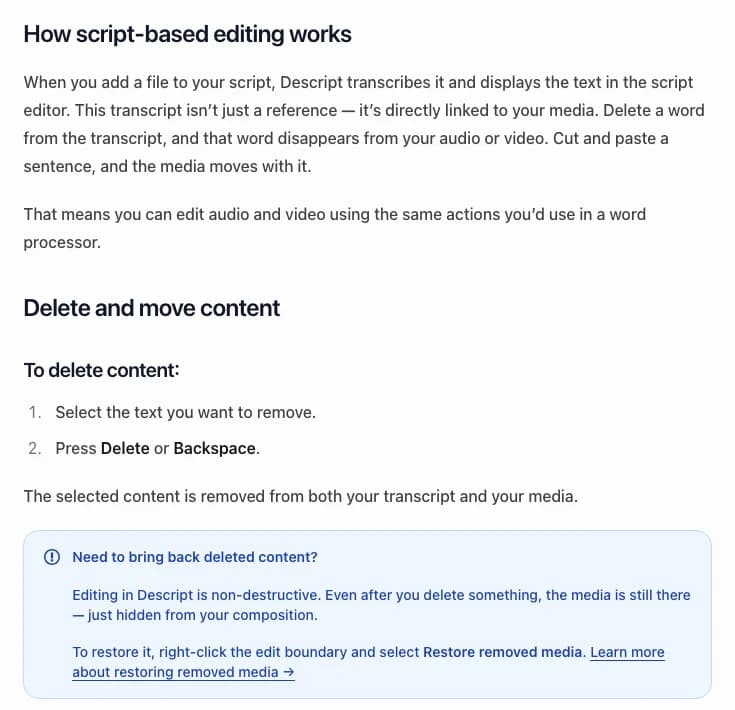
If you learn one technique, make it this one. Descript's help centre describes it plainly: the app transcribes your file, the transcript is linked to the media, and deleting a word from the text removes it from the audio or video. Cutting and pasting a sentence moves the footage with it. You edit the way you would edit a document.
For a beginner this solves two problems at once. You can see your whole video as words, which makes rambling and repetition obvious. And mistakes aren't permanent: Descript notes that deleted media is only hidden, and you can restore it from the edit boundary. That safety net matters when you're learning what to cut.
Several apps now offer the same idea, including Kapwing's transcript tab and Adobe's text-based editing. The workflow is similar across them: transcribe, delete, review, then export. Once you're comfortable, captions are the natural next step, and our comparison of AI caption generators covers accuracy and styling across tools.
Auto-edit, silence removal and captions: what to trust and what to check
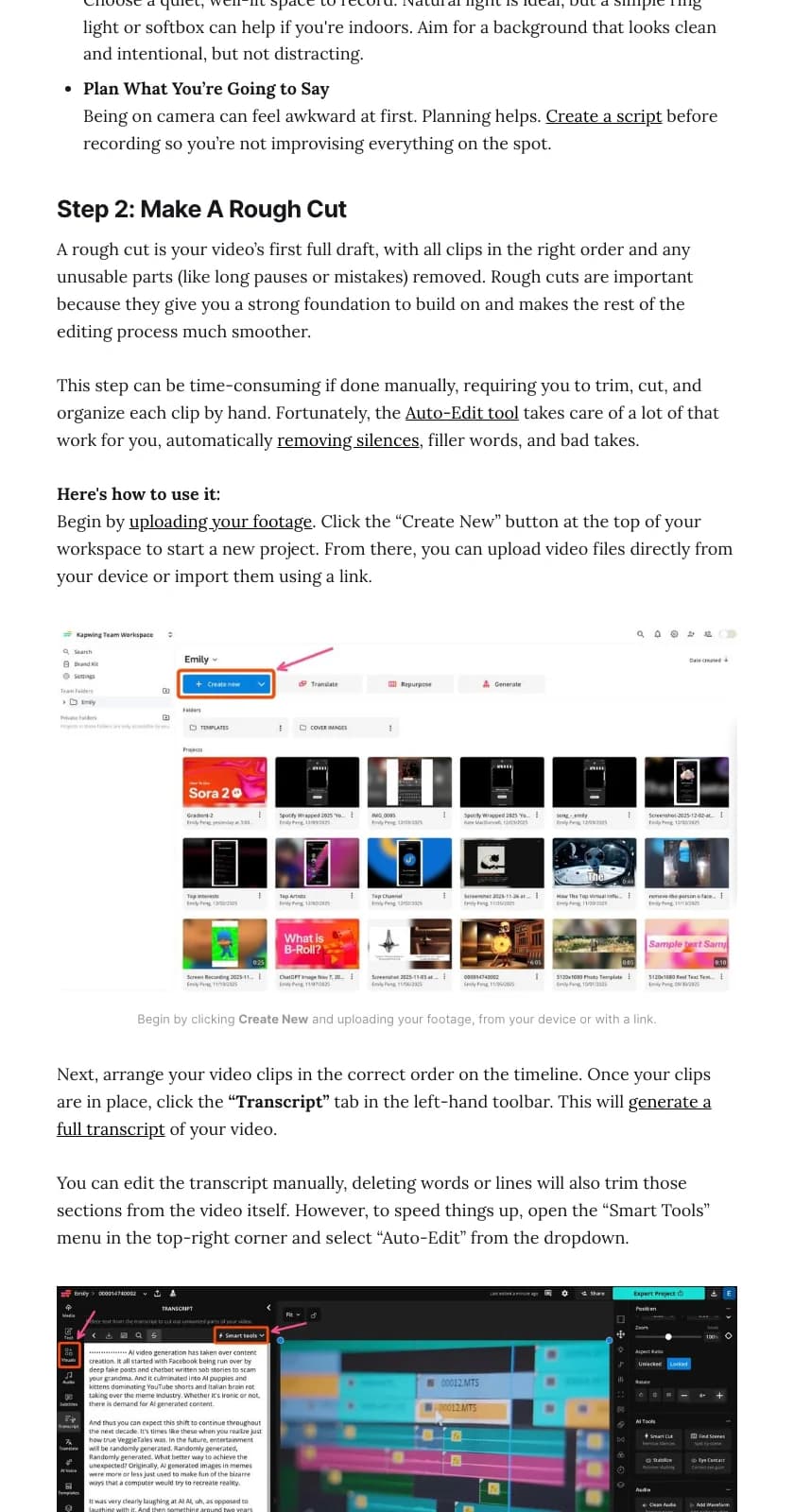
Most beginner-friendly editors now have a one-click cleanup. Kapwing's beginner guide, for example, walks through uploading footage, opening the transcript, then choosing Auto-Edit from its Smart Tools menu, which removes silences, filler words and bad takes and leaves you with a rough cut to build from. That phrase, rough cut, is the honest way to think about every automatic edit.
Use this as a checklist after any automatic pass:
- Silence removal: check that it didn't clip the first syllable after each pause, and that natural breaths remain so you don't sound rushed.
- Filler-word removal: listen for "like" or "so" that were part of a real sentence and got cut anyway.
- Bad-take detection: make sure it kept your best take, not just your last one.
- Auto captions: proofread brand names, people's names and numbers; check line breaks so no caption covers your face.
- Auto reframing: watch the full video once in vertical; reframing can lose a hand gesture or a product you're holding up.
- AI-picked clips: confirm each clip has a complete thought, with the setup and the payoff both inside it.
The options for AI video editing with no experience, compared
Every route works for someone. The right one depends on whether you want to learn editing or just publish. Here is how the main options compare for a first-time editor.
| Option | What you still do yourself | Good for | Trade-off |
|---|---|---|---|
| Free timeline editor | Everything: cuts, captions, sound | Learning the craft properly | Steep learning curve, slow first videos |
| Phone app with AI helpers | Cutting, choosing music, captions check | Short Reels and TikToks | Many features sit behind paid plans; easy to over-edit |
| Transcript-based editor | Choosing what to cut, final polish | Talking-head videos and podcasts | Weaker for visual, music-led videos |
| AI clipper | Picking which clips to post, fixing bad cuts | Long videos turned into shorts | Can miss context or cut a joke early |
| Freelance editor | Briefing, feedback, payments | A specific style and a relationship | Cost and turnaround vary; finding a reliable one takes time |
| Done-for-you AI editing service | Filming and picking a style | Creators short on time | Less hands-on control over each cut |
When a done-for-you AI video editor fits a beginner better
Some beginners don't actually want to become editors. A coach, a nutritionist or a local business owner needs a video posted every week, and the learning curve is time they don't have. For that reader, the honest answer is to skip the editing app entirely.
CreatorSuite is one option built for this. You upload raw footage (phone footage is fine), pick a style, and its AI video editor handles the cuts, hook, captions, b-roll, motion design, sound and colour, then sends back a finished, ready-to-post video. It edits footage you filmed; it doesn't film for you, generate videos from text or make AI avatars. Plans start at $9/month on Basic, which covers up to 3 short videos or 1 long-form video a month with 2 revisions per edit and delivery in 6–8 hours. Plus at $39/month covers up to 15 short or 5 long-form videos with unlimited re-edits and a brand kit.
It's a poor fit if you enjoy editing, want to control every frame, or want to build editing as a skill you can sell. In that case a transcript editor will teach you more. Our side-by-side on AI video editor vs human video editor covers when a person is still the better hire, and specialists such as yoga instructors or nutritionists can see how the service fits their kind of footage.
Common beginner mistakes with AI editing tools
These come up again and again in tool reviews and help threads. Each one has a simple fix.
- Posting the AI's first pass. Fix: watch the full video once at normal speed before exporting.
- Trusting a virality score. Fix: pick clips you'd share yourself; a score doesn't know your audience.
- Letting captions cover the face or the on-screen product. Fix: move captions to the lower third or above the platform's buttons.
- Adding effects to hide weak footage. Fix: re-record the opening line instead; it takes two minutes.
- Buying an annual plan in week one. Fix: use a free tier or trial until you know which workflow you'll actually keep.
- Ignoring billing terms. Fix: independent reviews of some AI clippers report cancellation and billing frustrations, so check how to cancel before you subscribe to any tool.
A 7-day plan to start AI video editing for beginners
If you want structure, follow this one-week plan. It assumes about 30 minutes a day and ends with a published video.
| Day | Task | Done when |
|---|---|---|
| 1 | Write one-sentence goals for three video ideas | You have three opening lines written out |
| 2 | Record the first idea with clean audio | Raw takes are on your computer or phone |
| 3 | Transcribe and cut by deleting words | Rough cut is under your target length |
| 4 | Run silence and filler-word cleanup, then review | No cut sounds abrupt |
| 5 | Add and proofread captions, reframe to vertical | Every caption is correct and readable |
| 6 | Post, then note where viewers drop off | Video is live and you've checked its analytics |
| 7 | Decide: keep editing yourself, or hand it off | You know which route you'll use for video two |
Tip: if day 7 tells you editing isn't for you, try CreatorSuite's 3-day free trial (card required) with the raw footage from video two: it covers 1 short video, 3 clips or 1 long video up to 10 minutes, and there's a full refund before your second edit.
Going further once the basics click
After a few videos, the next steps depend on your format. Streamers can follow our guide on how to edit Twitch clips for YouTube. Anyone curious about automating the whole pipeline from a chat window can read about AI video editing with MCP and ChatGPT. And if you sell products, UGC video editing covers the short ad formats brands ask for.
Whichever route you choose, the skill that lasts is judgment: knowing which moment matters and cutting toward it. AI tools are fast at the rest. Pair that judgment with an easy AI video editor for beginners, or with a service that edits for you, and your first video stops being a project and becomes a habit.
What we read for this guide
- Edit like a doc (Descript Help Center) · help.descript.comHow transcript-linked editing works and that deleted media can be restored.
- How to Edit Videos Using Kapwing: A Complete Beginner's Guide · kapwing.comStep-by-step Auto-Edit workflow that removes silences, filler words and bad takes into a rough cut.
- An honest look at OpusClip reviews (eesel AI) · eesel.aiSummarises user complaints: AI misses nuance and timing, fixing output takes time, billing frustrations.
- Look for a good video editing software without complicated tools (Microsoft Tech Community) · techcommunity.microsoft.comA real beginner request for simple editing and a reply warning multi-track editing confuses newcomers.
- Create Subtitles Automatically (CapCut) · capcut.comAuto caption workflow and the note that noise, accents and fast speech hurt accuracy.
- How to Use Descript: Beginner's Guide to Video Editing with Text & AI (YouTube) · youtube.comDescript's official video walkthrough of text-based editing for beginners.
How this page was made: written by Badar Munir and the CreatorSuite team with AI assistance, reviewed by James, from facts we checked ourselves and the sources listed above. Spotted something out of date? Email us and we’ll fix it.
AI video editing for beginners: FAQs
What is the easiest way to start AI video editing for beginners?
Start with a transcript-based editor. You read your video as text, delete the words you don't want, and the footage is cut to match. Then add auto captions and proofread them. It skips the timeline, which is what overwhelms most beginners.
What is the best AI video editor for beginners?
It depends on your format. Talking-head creators usually find transcript editors easiest, short-form creators often prefer phone apps with auto captions, and people with long videos lean on AI clippers. If you don't want to edit at all, a done-for-you service returns finished videos. Test with a free tier or trial before paying.
Is there cheap AI video editing for beginners?
Yes. Many apps have free tiers with limits such as watermarks or export caps. On the done-for-you side, CreatorSuite starts at $9/month on its Basic plan and offers a 3-day free trial (card required).
Do I need a good camera to edit videos with AI?
No. A recent phone is enough. Audio matters more than the camera: record close to the microphone in a quiet room, because captions, silence removal and transcript editing all depend on clean speech.
Can AI edit a whole video without me?
Automatic tools can produce a rough cut or a set of clips, but they can miss context or timing, so you should review the result. A done-for-you AI video editing service goes further and returns a finished, ready-to-post video from your raw footage.
How long does it take to learn AI video editing with no experience?
Most beginners can publish a simple captioned video in their first week using the plan above. Learning pacing, hooks and storytelling takes longer, and that part comes from making and reviewing more videos, not from the software.
Rather not edit it yourself?
Upload raw footage, get a finished edit back. 3-day free trial: 1 short video, 3 clips or 1 long video up to 10 min.
2,700+ creators in the last 7 days
Start 3-day free trial