In shortAn AI video editor with brand kit stores your logo, fonts, colours and caption style once so each new edit starts from the same look. Most drift comes from kits that are applied by hand, fonts that fail to load, or several people editing without shared rules. Set the kit up carefully, write a one-page rule sheet, and check the first edit of every batch against it.
- A brand kit saves your logo, colours, fonts and caption style so you stop rebuilding them per video.
- In many tools the kit is a library, not an autopilot: you still place the logo and pick the font each time.
- Updating a kit often does not change videos you already made, so old projects keep the old look.
- Most off-brand videos trace back to caption styles, aspect ratios and font files, not the logo.
- Done-for-you services suit people who want finished edits without opening an editor at all.
What an AI video editor with brand kit actually does
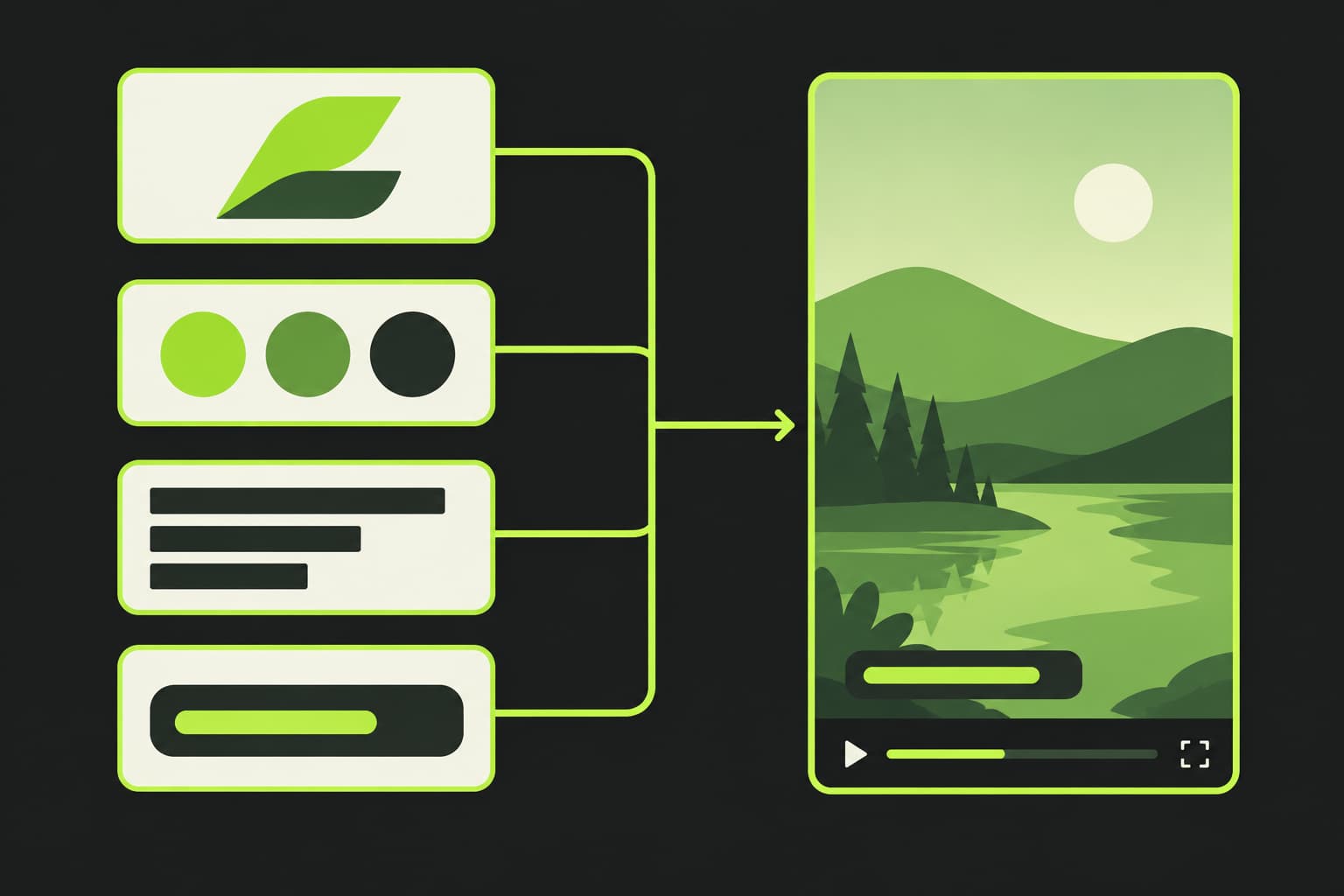
An AI video editor with brand kit lets you save your visual identity once and reuse it in every edit: your logo file, your colour codes, your fonts, and usually a caption style. The AI part handles cutting, captions and pacing. The brand kit part decides what those captions, titles and overlays look like.
The promise is simple. Your tenth video should look like it came from the same channel as your first, even if you filmed it on a different phone and edited it on a busy day. In practice, how close you get depends on whether the kit is applied automatically or only offered as a library you pick from.
Most kits hold the same core pieces, though names differ by tool:
- Logo: usually one file per kit, placed as a corner mark, intro or outro.
- Colours: saved as hex codes so captions, titles and backgrounds match exactly.
- Fonts: a heading font and a body or caption font, often uploaded as .ttf or .otf files.
- Caption and text styles: size, stroke, background box and position saved as a reusable preset.
- Brand media: intros, outros, lower thirds, music or sound effects you reuse.
Quick test for any tool: make two videos in a row without touching the style settings. If the second one already looks like the first, the kit is doing real work. If you had to re-pick the font and re-place the logo, it is a library, not a kit that applies itself.
Why videos drift off-brand even with a brand kit
Creators rarely lose consistency because they forgot their logo. Drift creeps in through smaller things. Here are the causes that come up again and again in help pages and support forums.
The kit is not applied automatically. A third-party CapCut guide says plainly that uploading a logo to a kit will not add it to every video; you place it per project. Clipchamp's help page says the same about media: you add brand items to the timeline yourself.
Updating the kit does not update old projects. Clipchamp's help page notes that changing an asset in a kit does not change projects that already use it, and VEED's help article says moving an asset only changes where editors find it later. If you refresh your colours, every older project still carries the old ones.
Fonts fail to load. On Adobe's community forum, one user described a brand font that caused endless loading and crashes in a video project after it was synced to the brand kit. They tried clearing cache, new projects and three browsers before a moderator suggested deleting and re-uploading the font file. Font files are a weak point in every tool.
Caption styles are saved separately from fonts. The same CapCut guide points out that a font file does not store size, stroke or animation; you need a separate text preset. Many creators save the font and assume the caption look is saved too.
Different aspect ratios break the layout. A logo that sits well in a 16:9 video can cover a face in 9:16. OpusClip's help page handles this by letting each kit carry settings for four ratios (9:16, 16:9, 1:1 and 4:5), which tells you how often this goes wrong.
Several people edit with no shared rules. Kapwing's help page notes that any user can unlock locked template layers, and VEED says there is no separate brand kit permission, so anyone who can edit can change kit assets. One teammate swapping a colour is enough to split your look.
How to diagnose which cause applies to your videos
Put your last six videos side by side, paused on a frame with captions showing. Then match what you see to the table below. Fix the cause, not the symptom: re-colouring captions by hand each week only hides the problem.
| What you see | Likely cause | What to change |
|---|---|---|
| Captions change colour or size between videos | No saved caption preset; only the font is in the kit | Save one caption style (font, size, stroke, box, position) and make it the default |
| Logo moves around or covers faces in Shorts | One logo position used for every aspect ratio | Set a separate logo position for vertical and horizontal formats |
| Old videos use last year's colours | Kit updates do not flow into existing projects | Accept old videos as they are, or re-export only your evergreen ones |
| A fallback font appears in some exports | Font file failed to upload or load | Re-upload the single .ttf or .otf file, not a ZIP, and test one export |
| Videos from a teammate look different | Anyone can edit kit assets or unlock templates | Write a one-page rule sheet and limit who can change the kit |
| Everything matches but videos still feel off | Pacing, hook and music differ, not branding | Agree a fixed intro length, music mood and hook format |
The last row matters. Viewers recognise a channel by rhythm as much as by colour. If your branding matches and the videos still feel inconsistent, look at your hook, cut speed and music before you touch the kit.
Brand kit for video editing: how popular tools handle it
Every tool below offers a brand kit for video editing, but they differ on plan access, how many kits you get, and whether the kit applies itself. The details come from each tool's own help pages (CapCut from a third-party guide), so check them again before you pay, because plans change.
The pattern is clear. Clip-focused tools like OpusClip lean towards applying the kit when you submit a project. General editors like Clipchamp and CapCut treat the kit as a shelf you pull from. If you want a wider view of these tools beyond branding, see our guide to the best AI video editors for creators and the head-to-head video editing tool comparisons.
| Tool | What the kit holds (per its docs) | Kits and plan notes | Applied automatically? |
|---|---|---|---|
| Kapwing | Colours, custom fonts, text and subtitle styles, logos, intros, outros, templates | Pro, Business, Enterprise; one kit per workspace | Brand font becomes the default for new text; templates give a starting layout |
| VEED | Fonts, colours, images, video, audio, saved groups like lower thirds | Not on Free; Creator gets one kit with fonts and colours only; more on Pro and up | No; you click assets in the Brand Kit tab |
| Descript (Brand Studio) | Layout packs, fonts, colours, shared media, share page logo, glossary | Business and Enterprise; one kit per Drive | Layout packs can be set as defaults by admins |
| OpusClip | Logo, caption style, headline style, layout, intro and outro, music | Starter one kit; Pro two kits; custom intros and outros need Pro | Yes, when you submit a project with a Recipe |
| Clipchamp | Logos, fonts, colours, music, images, videos | Premium; one kit per personal account, more for work accounts | No; you add items to the timeline yourself |
| CapCut (third-party guide) | Logo, colours, heading and body fonts, shared media | Shared kits listed as a Teams benefit | No; the logo must be placed in each project |
What CreatorSuite sends back
A real upload next to the finished edit. Switch between short form and long form.
Step by step: set up a brand kit that survives every edit
Whether you use an AI video editor with brand kit, a desktop app or a freelancer, the setup below keeps your look steady across editors, formats and months. It takes about an hour once, and it saves you fixing captions on every video after that.
- Step 1. Gather clean files. Export your logo as a transparent PNG or SVG, plus a white version for dark footage. Collect the actual .ttf or .otf font files you have a licence to use, not a ZIP folder.
- Step 2. Pick two or three colours and write down their hex codes. One for caption text, one for highlights or keywords, and one for backgrounds or boxes. Fewer colours means fewer ways to drift.
- Step 3. Choose two fonts at most: a bold one for titles and hooks, and a very readable one for captions. Test the caption font on a phone screen at arm's length.
- Step 4. Save a full caption preset, not just the font: size, stroke or shadow, background box, highlight colour and vertical position. If you are still choosing a caption tool, our AI caption generators compared guide covers the main options.
- Step 5. Set logo rules per format. Decide a corner, a size and an opacity for vertical videos and a separate one for horizontal videos. Keep it clear of faces and of the platform's own buttons.
- Step 6. Write a one-page rule sheet. List the files, hex codes, fonts, caption preset and logo positions, plus intro length and music mood. Share it with anyone who touches your videos.
- Step 7. Run a test edit and compare. Make one short and one long video, pause both on a caption frame, and check every item on the rule sheet before you produce a full batch.
Keep a master copy of your logo and fonts outside any editing tool. Help pages for Clipchamp and the CapCut guide both note that kits depend on stored files, and a tool's kit is not a backup.
Worked example: one month of on-brand videos for a small shop
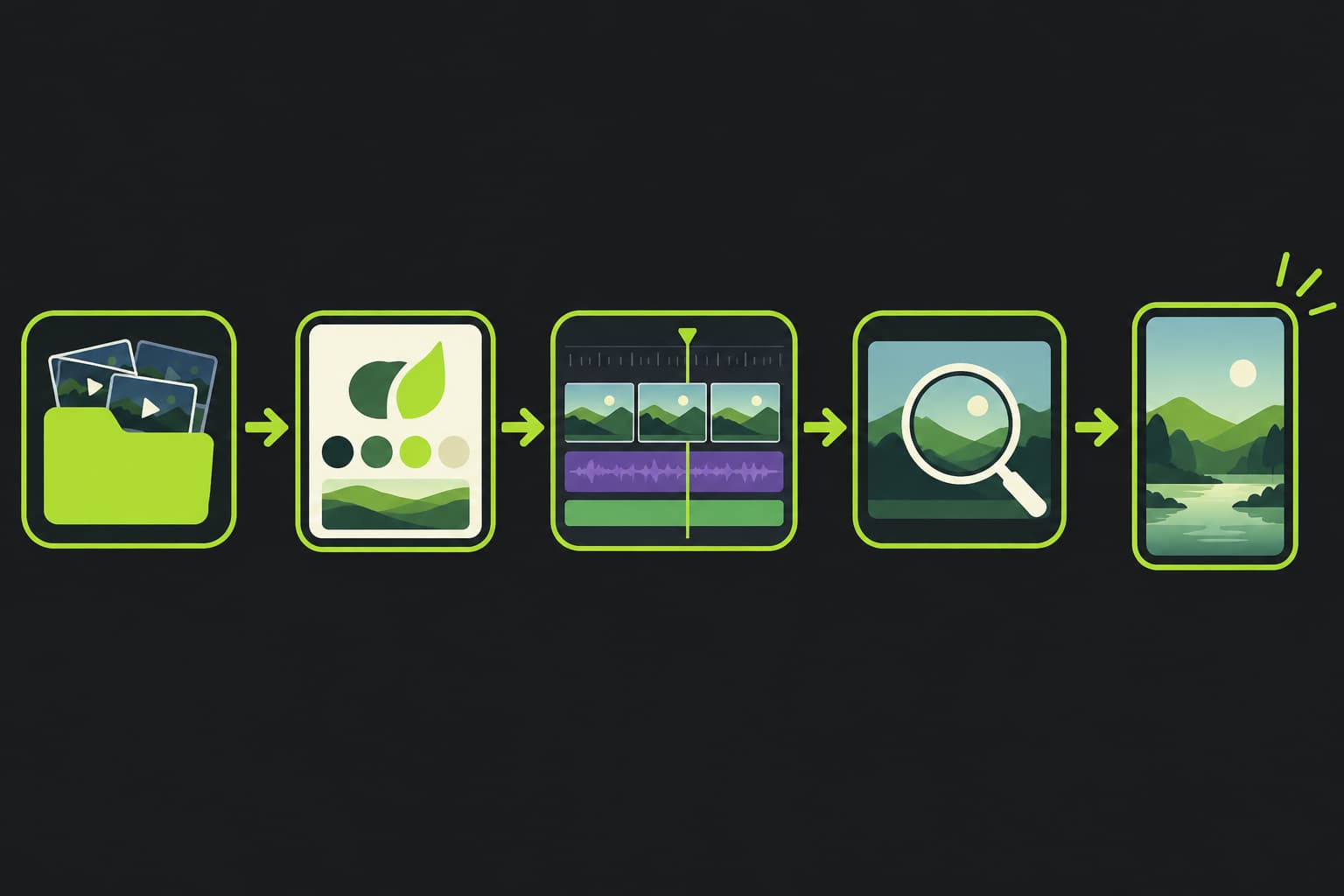
Take a small online shop that posts product videos on Instagram and TikTok and one longer video on YouTube each month. The owner films on a phone. They want every video to use the same lime caption highlight, the same font and a small logo in the top corner, and they do not want to edit.
Their monthly plan: 8 short product videos, 1 long video, and 20 clips cut from that long video. Using a credit-based service, they can work out the cost before they start. At CreatorSuite, a short video uses 100 credits, a long video 300, and a clip 25.
That adds up to 8 x 100 = 800 credits, plus 300 for the long video, plus 20 x 25 = 500 for clips: 1,600 credits in total. The Plus plan gives 1,500 credits for $39 a month, so this exact mix is 100 credits too many. Dropping 4 clips brings it to 1,500 and fits. If they wanted all 20 clips and more shorts, the Starter plan at $149 a month with 3,500 credits would cover it with room to spare.
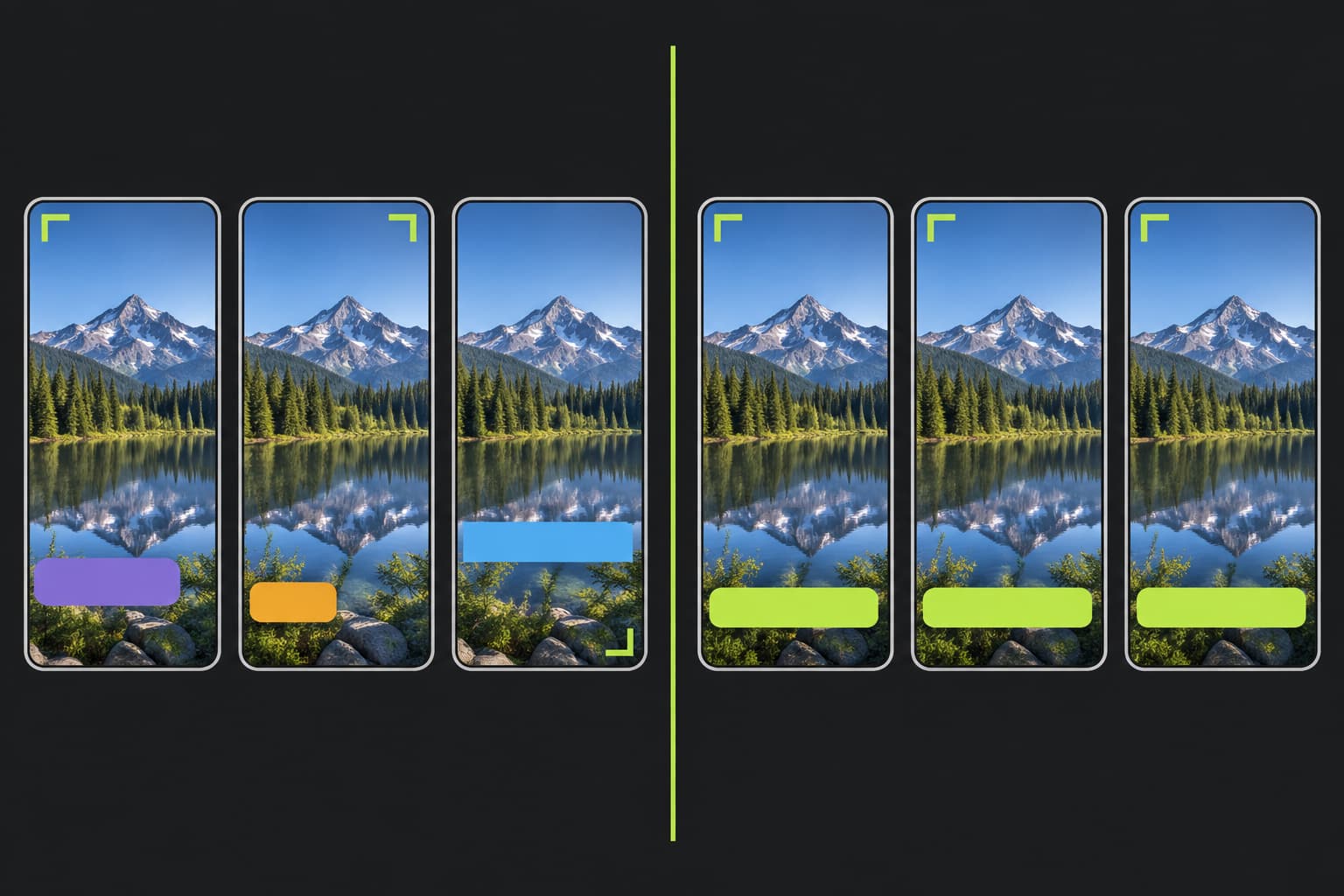
Branding matters here because these videos are seen side by side on the shop's profile grid. If clip 3 has yellow captions and clip 4 has white ones, the grid looks careless. The same brand rules applied to every item is what makes 25-plus videos read as one shop. Shop owners weighing this up can read more in our page on the AI video editor for Shopify stores, and turning one long video into many clips is covered in long video to shorts editing.
| Item | Count | Credits each | Credits total |
|---|---|---|---|
| Short product videos | 8 | 100 | 800 |
| Long YouTube video | 1 | 300 | 300 |
| Clips from the long video | 16 | 25 | 400 |
Your options: DIY, apps, freelancers or a done-for-you service
There are four realistic ways to keep videos on brand. None is right for everyone. It depends on how much you post, how much time you have, and whether you enjoy editing.
DIY in a free or cheap editor. You build presets yourself and apply them by hand. It costs little and gives full control, but consistency depends on your discipline every single time. Good if you post once or twice a week and like editing. Start with our guide to AI video editing for beginners.
An app with a built-in kit, such as Kapwing, VEED, Descript or OpusClip. Kits cut the setup work, and some apply styles when you submit a project. You still do the editing, and the kit features you need often sit on the higher paid tiers, as the table above shows. Good if you want to stay hands-on but faster.
A freelancer. A good editor will follow your rule sheet and can handle unusual requests. The risks are availability, turnaround and drift when you switch editors. If you are weighing marketplaces, our Fiverr video editors alternative page covers the trade-offs, and how to choose a video editing service gives a checklist.
A done-for-you AI video editing service. You upload raw footage, choose a style, and get finished videos back. CreatorSuite works this way: its AI video editor handles cuts, the hook, captions, b-roll, motion design, sound and colour, and brand kit is included from the Plus plan. This suits people who want consistent finished edits and do not want to open an editor. It is not the right fit if you want frame-by-frame control in your own timeline, or if you need videos generated from text or AI avatars, which CreatorSuite does not make.
| Option | Your time per video | Consistency risk | Fits best when |
|---|---|---|---|
| DIY editor | High | Depends on you each time | You enjoy editing and post rarely |
| App with brand kit | Medium | Low if the kit applies itself; higher if manual | You want control and some speed |
| Freelancer | Low | Rises when you change editors | You need custom, unusual edits |
| Done-for-you AI service | Low (upload and pick a style) | Low once your brand settings are saved | You post often and want finished videos |
Questions to ask before choosing an AI video editor with brand kit
Plan pages tend to list 'brand kit' as a single tick. The useful detail sits underneath. Ask these before you commit to any video editor with brand kit features:
- Does the kit apply automatically to new videos, or do I pick each asset by hand?
- Does it save full caption styles, or only fonts and colours?
- Can I set a different logo position for vertical and horizontal videos?
- How many kits do I get, and which plan includes custom fonts and logos?
- Who on my team can change the kit, and can changes be limited?
- If I update my colours, what happens to videos already in progress?
- Can I try it with my own footage before paying in full?
If you run several brands or client accounts, kit limits matter most. Kapwing allows one kit per workspace and Descript one per Drive, according to their help pages, so multi-brand work can mean multiple paid workspaces. Our guide to [agency video production at scale](/blog/agency-video-production-at-scale) goes deeper on that.
Where CreatorSuite fits as an AI video editor with brand kit
CreatorSuite is an AI video editing service rather than an editing app. You upload raw footage (phone footage is fine), pick a style, and the AI returns a finished, ready-to-post video. Brand kit is available from the Plus plan, and thumbnails come with every plan. More than 2,700 creators used it in the last 7 days.
The plans below show what each tier includes. If you are new to how these subscriptions work, video editing subscription services explained walks through credits, turnaround and revisions.
Try it on your own footage first: the 3-day free trial covers 1 short video, 3 clips or 1 long video up to 10 minutes (card required), and you get a full refund before your 2nd edit. If you only post occasionally and like editing, a DIY editor with saved presets may serve you better and cost less.
| Plan | Price | Credits | Brand kit | Videos at a time | Turnaround |
|---|---|---|---|---|---|
| Basic | $9/month | 300 | No | 1 | 6-8 hours |
| Plus | $39/month | 1,500 | Yes | 3 | 5-6 hours |
| Starter | $149/month | 3,500 | Yes | 4 | 5-6 hours |
| Growth | $299/month | 6,000 | Yes | 4 | 3-4 hours |
What we read for this guide
- How to use Brand Kit and Brand Templates in Kapwing · kapwing.comWhat Kapwing kits hold, one kit per workspace, and that users can unlock locked template layers.
- Create and manage Brand Kits (VEED help) · support.veed.ioPlan limits by tier and that there is no separate brand kit permission.
- Brand Studio (Descript help) · help.descript.comBrand Studio contents, Business and Enterprise plans, one kit per Drive, and roles.
- How to Use Brand Kit (OpusClip help) · help.opus.proKit contents, four aspect ratios per kit, and kit limits by plan.
- How to use brand kit in Clipchamp (Microsoft Support) · support.microsoft.comAssets are added manually, and kit updates do not change existing projects.
- CapCut Brand Kit: Add Logos, Fonts and Brand Colors · capcutguide.comThird-party guide: logos are not added automatically; font files do not store caption styling.
- Cannot get brand fonts to work in Adobe Express (Adobe Community) · community.adobe.comA user's brand font caused endless loading in a video project; re-uploading the font was suggested.
How this page was made: written by Badar Munir and the CreatorSuite team with AI assistance, reviewed by James, from facts we checked ourselves and the sources listed above. Spotted something out of date? Email us and we’ll fix it.
AI video editor with brand kit: FAQs
What is an AI video editor with brand kit?
It is an editing tool or service that stores your logo, colours, fonts and caption style and reuses them across edits, while AI handles tasks like cutting and captions. The kit is what keeps each new video looking like your earlier ones.
Does a brand kit add my logo to every video automatically?
It depends on the tool. OpusClip's help page says its kit applies when you submit a project with a Recipe. Clipchamp's help page and a CapCut guide say you place logos on the timeline yourself in each project.
Why do my captions look different between videos even with a brand kit?
Usually because only the font is saved, not the full caption style. Size, stroke, background box and position need their own saved preset. Check this before blaming the tool.
If I change my brand colours, will old videos update?
Usually not. Clipchamp's help page says updating a kit asset does not change existing projects. Plan to re-export only the evergreen videos that matter.
How do I keep videos on brand when several people edit them?
Write a one-page rule sheet with your files, hex codes, fonts, caption preset and logo positions, and limit who can change the kit. Some tools, like VEED, let anyone who can edit also change kit assets.
Which CreatorSuite plan includes a brand kit?
Brand kit is available from the Plus plan at $39 a month, which includes 1,500 credits. Basic at $9 a month does not include it. You can try the service with the 3-day free trial first.
Rather not edit it yourself?
Upload raw footage, get a finished edit back. 3-day free trial: 1 short video, 3 clips or 1 long video up to 10 min.
2,700+ creators in the last 7 days
Start 3-day free trial